Programmatically Flushing FTP Logs
03 February 2012 • by Bob • IIS, Scripting, FTP, Extensibility
I had a great question from Scott Forsyth earlier today about programmatically flushing the logs for an FTP site. Scott had noticed that there was a FlushLog method listed on the following page in the IIS Configuration Reference:
http://www.iis.net/ConfigReference/system.applicationHost/sites/site/ftpServer
Unfortunately there wasn't a code sample for that method; but as luck would have it, I had already written some code to do just that. (I love synchronicity...) With that in mind, I though that I'd post the code in a blog. In keeping with the cross-language samples that I wrote for the topics in the Configuration Reference, I thought that's I'd include several languages in this blog to make it easier for someone else to copy and paste.
C#
using System;
using System.Text;
using Microsoft.Web.Administration;

internal static class Sample
{
   private static void Main()
   {
      using (ServerManager serverManager = new ServerManager())
      {
         Configuration config = serverManager.GetApplicationHostConfiguration();
         // Retrieve the sites collection.
         ConfigurationSection sitesSection = config.GetSection("system.applicationHost/sites");
         ConfigurationElementCollection sitesCollection = sitesSection.GetCollection();

         // Locate a specific site.
         ConfigurationElement siteElement = FindElement(sitesCollection,"site","name",@"ftp.contoso.com");
         if (siteElement == null) throw new InvalidOperationException("Element not found!");

         // Create an object for the ftpServer element.
         ConfigurationElement ftpServerElement = siteElement.GetChildElement("ftpServer");
         // Create an instance of the FlushLog method.
         ConfigurationMethodInstance FlushLog = ftpServerElement.Methods["FlushLog"].CreateInstance();
         // Execute the method to flush the logs for the FTP site.
         FlushLog.Execute();
      }
   }

   // Locate and return the index for a specific element in a collection.
   private static ConfigurationElement FindElement(ConfigurationElementCollection collection, string elementTagName, params string[] keyValues)
   {
      foreach (ConfigurationElement element in collection)
      {
         if (String.Equals(element.ElementTagName, elementTagName, StringComparison.OrdinalIgnoreCase))
         {
            bool matches = true;
            for (int i = 0; i < keyValues.Length; i += 2)
            {
               object o = element.GetAttributeValue(keyValues[i]);
               string value = null;
               if (o != null)
               {
                  value = o.ToString();
               }
               if (!String.Equals(value, keyValues[i + 1], StringComparison.OrdinalIgnoreCase))
               {         matches = false;
                  break;
               }
            }
            if (matches)
            {
               return element;
            }
         }
      }
      return null;
   }
}
VB.NET
Imports System
Imports System.Text
Imports Microsoft.Web.Administration

Module Sample
   Sub Main()
      Dim serverManager As ServerManager = New ServerManager
      Dim config As Configuration = serverManager.GetApplicationHostConfiguration
      ' Retrieve the sites collection.
      Dim sitesSection As ConfigurationSection = config.GetSection("system.applicationHost/sites")
      Dim sitesCollection As ConfigurationElementCollection = sitesSection.GetCollection

      ' Locate a specific site.
      Dim siteElement As ConfigurationElement = FindElement(sitesCollection,"site","name","ftp.contoso.com")
      If (siteElement Is Nothing) Then
         Throw New InvalidOperationException("Element not found!")
      End If

      ' Create an object for the ftpServer element.
      Dim ftpServerElement As ConfigurationElement = siteElement.GetChildElement("ftpServer")
      ' Create an instance of the FlushLog method.
      Dim FlushLog As ConfigurationMethodInstance = ftpServerElement.Methods("FlushLog").CreateInstance()
      ' Execute the method to flush the logs for the FTP site.
      FlushLog.Execute()

   End Sub

   ' Locate and return the index for a specific element in a collection.
   Private Function FindElement(ByVal collection As ConfigurationElementCollection, ByVal elementTagName As String, ByVal ParamArray keyValues() As String) As ConfigurationElement
      For Each element As ConfigurationElement In collection
         If String.Equals(element.ElementTagName, elementTagName, StringComparison.OrdinalIgnoreCase) Then
            Dim matches As Boolean = True
            Dim i As Integer
            For i = 0 To keyValues.Length - 1 Step 2
               Dim o As Object = element.GetAttributeValue(keyValues(i))
               Dim value As String = Nothing
               If (Not (o) Is Nothing) Then
                  value = o.ToString
               End If
               If Not String.Equals(value, keyValues((i + 1)), StringComparison.OrdinalIgnoreCase) Then
                  matches = False
                  Exit For
               End If
            Next
            If matches Then
               Return element
            End If
         End If
      Next
      Return Nothing
   End Function

End Module
JavaScript
// Create a Writable Admin Manager object.
var adminManager = new ActiveXObject('Microsoft.ApplicationHost.WritableAdminManager');
adminManager.CommitPath = "MACHINE/WEBROOT/APPHOST";

// Retrieve the sites collection.
var sitesSection = adminManager.GetAdminSection("system.applicationHost/sites","MACHINE/WEBROOT/APPHOST");
var sitesCollection = sitesSection.Collection;

// Locate a specific site.
var siteElementPos = FindElement(sitesCollection,"site",["name","ftp.contoso.com"]);
if (siteElementPos == -1) throw "Element not found!";

// Retrieve the site element.
var siteElement = sitesCollection.Item(siteElementPos);
// Create an object for the ftpServer element.
var ftpServerElement = siteElement.ChildElements.Item("ftpServer");
// Create an instance of the FlushLog method.
var FlushLog = ftpServerElement.Methods.Item("FlushLog").CreateInstance();
// Execute the method to flush the logs for the FTP site.
FlushLog.Execute();

// Locate and return the index for a specific element in a collection.
function FindElement(collection, elementTagName, valuesToMatch) {
   for (var i = 0; i < collection.Count; i++) {
      var element = collection.Item(i);
      if (element.Name == elementTagName) {
         var matches = true;
         for (var iVal = 0; iVal < valuesToMatch.length; iVal += 2) {
            var property = element.GetPropertyByName(valuesToMatch[iVal]);
            var value = property.Value;
            if (value != null) {
               value = value.toString();
            }
            if (value != valuesToMatch[iVal + 1]) {
               matches = false;
               break;
            }
         }
         if (matches) {
            return i;
         }
      }
   }
   return -1;
}
VBScript
' Create a Writable Admin Manager object.
Set adminManager = CreateObject("Microsoft.ApplicationHost.WritableAdminManager")
adminManager.CommitPath = "MACHINE/WEBROOT/APPHOST"

' Retrieve the sites collection.
Set sitesSection = adminManager.GetAdminSection("system.applicationHost/sites","MACHINE/WEBROOT/APPHOST")
Set sitesCollection = sitesSection.Collection

' Locate a specific site.
siteElementPos = FindElement(sitesCollection,"site",Array("name","ftp.contoso.com"))
If siteElementPos = -1 Then
   WScript.Echo "Element not found!"
   WScript.Quit
End If

' Retrieve the site element.
Set siteElement = sitesCollection.Item(siteElementPos)
' Create an object for the ftpServer element.
Set ftpServerElement = siteElement.ChildElements.Item("ftpServer")
' Create an instance of the FlushLog method.
Set FlushLog = ftpServerElement.Methods.Item("FlushLog").CreateInstance()
' Execute the method to flush the logs for the FTP site.
FlushLog.Execute()

' Locate and return the index for a specific element in a collection.
Function FindElement(collection, elementTagName, valuesToMatch)
   For i = 0 To CInt(collection.Count) - 1
      Set element = collection.Item(i)
      If element.Name = elementTagName Then
         matches = True
         For iVal = 0 To UBound(valuesToMatch) Step 2
            Set property = element.GetPropertyByName(valuesToMatch(iVal))
            value = property.Value
            If Not IsNull(value) Then
               value = CStr(value)
            End If
            If Not value = CStr(valuesToMatch(iVal + 1)) Then
               matches = False
               Exit For
            End If
         Next
         If matches Then
            Exit For
         End If
      End If
   Next
   If matches Then
      FindElement = i
   Else
      FindElement = -1   End If
End Function
Summary
Hopefully this gives you an idea of how to call the FlushLog method. You can also use these examples to call the Start and Stop methods for FTP sites; you just need to substitute the correct method in place of the FlushLog method.
Note: This blog was originally posted at http://blogs.msdn.com/robert_mcmurray/
Using URL Rewrite to Insert Different Scripts Based on Browser Type
03 February 2012 • by Bob • IIS, Scripting
I just stumbled across a piece of sample code that I had written several months ago for a coworker, and I thought that I'd share it with everyone.
Here's the scenario: my coworker asked me if it was possible to have different client-side scripts inserted dynamically depending on the type of web browser that is being used. If the application was written in ASP.NET or some other dynamic language, then it would be trivial to determine the browser type and return the correct HTML <script> block to the client. Unfortunately, he needed the script for both static and dynamic pages, and he didn't want to modify all of his pages unless absolutely necessary.
This sounded to me like a job for a pair of outbound rules in URL Rewrite.
With the above design requirements in mind, I wrote the following sample configuration for URL Rewrite that accomplishes the following tasks:
- If you’re using Internet Explorer, it inserts VBScript to display a popup message.
- If you’re not using Internet Explorer, it inserts JavaScript to display a different popup message.
In order to use this sample code, you need to open the web.config file for your application and add the following code for the URL Rewrite rules. (Note: You need to disable compression in order to avoid an HTTP 500.52 error, and the following sample code does just that.)
<system.webServer>
<rewrite>
<outboundRules>
<rule name="Add JavaScript" preCondition="IsNotInternetExplorer" patternSyntax="ExactMatch">
<match filterByTags="None" pattern="</body>" />
<action type="Rewrite" value="<script language="javascript">alert('You are not using Internet Explorer!');</script></body>" />
</rule>
<rule name="Add VBScript" preCondition="IsInternetExplorer" patternSyntax="ExactMatch">
<match filterByTags="None" pattern="</body>" />
<action type="Rewrite" value="<script language="vbscript">MsgBox "You are using Internet Explorer!"</script></body>" />
</rule>
<preConditions>
<preCondition name="IsInternetExplorer">
<add input="{RESPONSE_CONTENT_TYPE}" pattern="^text/html" />
<add input="{HTTP_USER_AGENT}" pattern=".*MSIE" negate="false" />
</preCondition>
<preCondition name="IsNotInternetExplorer">
<add input="{RESPONSE_CONTENT_TYPE}" pattern="^text/html" />
<add input="{HTTP_USER_AGENT}" pattern=".*MSIE" negate="true" />
</preCondition>
</preConditions>
</outboundRules>
</rewrite>
<urlCompression doStaticCompression="false" doDynamicCompression="false" />
</system.webServer>
The above example is what I sent to my coworker, and I intended it as an easy place to start when you just want a simple chunk of script to be inserted. It works well, but a better example would be to have it dynamically insert code for an external script file based on the browser type. This is illustrated in the following example:
<system.webServer>
<rewrite>
<outboundRules>
<rule name="For Other Browsers" preCondition="IsNotInternetExplorer" patternSyntax="ExactMatch">
<match filterByTags="None" pattern="</body>" />
<action type="Rewrite" value="<script language="javascript" src="other.js"></script></body>" />
</rule>
<rule name="For Internet Explorer" preCondition="IsInternetExplorer" patternSyntax="ExactMatch">
<match filterByTags="None" pattern="</body>" />
<action type="Rewrite" value="<script language="javascript" src="msie.js"></script></body>" />
</rule>
<preConditions>
<preCondition name="IsInternetExplorer">
<add input="{RESPONSE_CONTENT_TYPE}" pattern="^text/html" />
<add input="{HTTP_USER_AGENT}" pattern=".*MSIE" negate="false" />
</preCondition>
<preCondition name="IsNotInternetExplorer">
<add input="{RESPONSE_CONTENT_TYPE}" pattern="^text/html" />
<add input="{HTTP_USER_AGENT}" pattern=".*MSIE" negate="true" />
</preCondition>
</preConditions>
</outboundRules>
</rewrite>
<urlCompression doStaticCompression="false" doDynamicCompression="false" />
</system.webServer>
The above sample dynamically inserts an HTML <script> block, and specifies one script file ("msie.js") for Internet Explorer a different script file ("other.js") for all other browsers.
A simple script for a simple task - just the way I like it. ;-]
Note: This blog was originally posted at http://blogs.msdn.com/robert_mcmurray/
Advanced Log Parser Charts Part 2 - Using Gradient Colors for Area Charts
29 January 2012 • by Bob • IIS, LogParser, Scripting
In Part 2 of this series, I'll show you how to customize the area chart from Part 1 to show the chart area with a gradient. More specifically, there are three different chart gradient methods that we'll take a look at in this blog post:
Before I continue, there is one quick Log Parser convention that you should realize: there are two objects that Log Parser will create and pass to your script. As you look at the sample scripts in this post, you will see these objects in use:
| Object Name | Description | Example |
|---|---|---|
chartSpace |
This is the base chart workspace object. |
// Set the border style for the chart. |
chart |
This is equivalent to the chartSpace.Charts(0) object. |
// Change the background color. |
Before I get started, here's a quick review of VBScript that uses Log Parser COM objects:
Option Explicit
' Declare the variables.
Dim objLogQuery, strSQL
Dim objInputW3CFormat, objOutputChartFormat
' Create the Log Parser objects.
Set objLogQuery = WScript.CreateObject("MSUtil.LogQuery")
Set objInputW3CFormat = WScript.CreateObject("MSUtil.LogQuery.W3CInputFormat")
Set objOutputChartFormat = WScript.CreateObject("MSUtil.LogQuery.ChartOutputFormat")
' Define the SQL query.
strSQL = "SELECT Date, COUNT(*) AS Hits " & _
" INTO _Part2.gif " & _
" FROM *.log " & _
" GROUP BY Date " & _
" ORDER BY Date"
' Specify the chart options.
objOutputChartFormat.groupSize = "800x600"
objOutputChartFormat.fileType = "GIF"
objOutputChartFormat.chartType = "Area"
objOutputChartFormat.categories = "ON"
objOutputChartFormat.values = "ON"
objOutputChartFormat.legend = "OFF"
' Execute the SQL statement to create the chart.
objLogQuery.ExecuteBatch strSQL, objInputW3CFormat, objOutputChartFormat
As I mentioned in Part 1 of this series, you don't have to use the COM objects, but I chose to do so for this blog series because it makes it a little easier to script. That being said, if I use one month's worth of log files from one of my low-volume websites, Log Parser and this VBScript creates the following rather ugly daily hits chart:
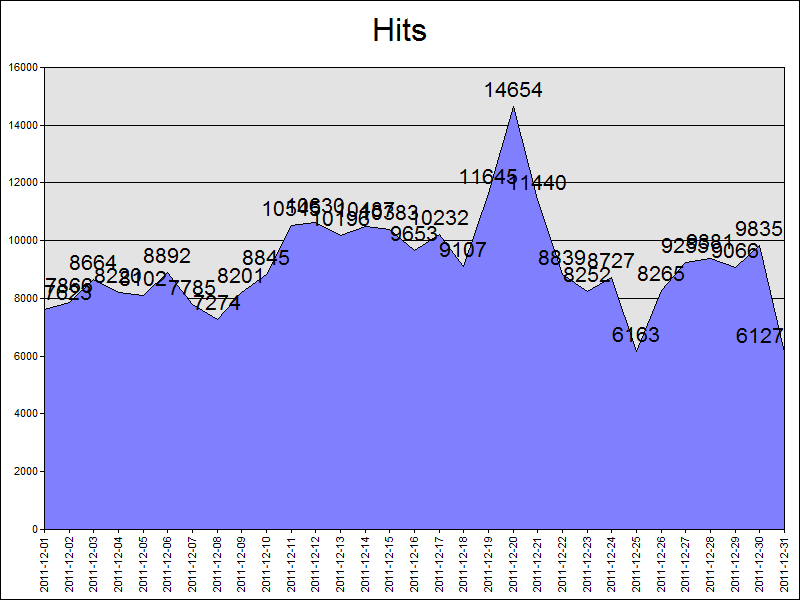
With all of this in mind, let's take a look at some simple configuration scripts.
Setting Fonts and Titles and Such...
The above chart really needs some help, so the first thing that we'll do is change a few things. First things first, we need to specify the name of the chart configuration script in the VBScript sample:
Option Explicit
' Declare the variables.
Dim objLogQuery, strSQL
Dim objInputW3CFormat, objOutputChartFormat
' Create the Log Parser objects.
Set objLogQuery = WScript.CreateObject("MSUtil.LogQuery")
Set objInputW3CFormat = WScript.CreateObject("MSUtil.LogQuery.W3CInputFormat")
Set objOutputChartFormat = WScript.CreateObject("MSUtil.LogQuery.ChartOutputFormat")
' Define the SQL query.
strSQL = "SELECT Date, COUNT(*) AS Hits " & _
" INTO Part2.gif " & _
" FROM *.log " & _
" GROUP BY Date " & _
" ORDER BY Date"
' Specify the chart options.
objOutputChartFormat.groupSize = "800x600"
objOutputChartFormat.fileType = "GIF"
objOutputChartFormat.chartType = "Area"
objOutputChartFormat.categories = "ON"
objOutputChartFormat.values = "ON"
objOutputChartFormat.legend = "OFF"
objOutputChartFormat.config = "Part2.js"
' Execute the SQL statement to create the chart.
objLogQuery.ExecuteBatch strSQL, objInputW3CFormat, objOutputChartFormat
Next, we need to create the actual chart configuration script, which I wrote in JavaScript; you will need to save this as "Part2.js" in order to use my samples:
// Set the title above the chart.
chart.HasTitle = true;
chart.Title.Caption = "Hits by Day"
// Set the border style for the chart.
chartSpace.Border.Color = "#000000";
chartSpace.Border.Weight = 2;
// Change the background color for the plot area.
chart.PlotArea.Interior.Color = "#f0f0f0";
// Set the font size for the chart values.
chart.SeriesCollection(0).DataLabelsCollection(0).Font.Size = 6;
// Get the start and end dates from the X axis.
var startDate = chart.Axes(0).CategoryLabels.Item(0).Caption;
var endDate = chart.Axes(0).CategoryLabels.Item(chart.Axes(0).CategoryLabels.ItemCount-1).Caption;
// Set the caption below the chart.
chartSpace.HasChartSpaceTitle = true;
chartSpace.ChartSpaceTitle.Caption =
"This chart shows the hits by day from "
+ startDate + " to " + endDate + ".";
chartSpace.ChartSpaceTitle.Font.Size = 10;
chartSpace.ChartSpaceTitle.Position = chartSpace.Constants.chTitlePositionBottom;
// Set the style and caption for the Y axis.
chart.Axes(0).Font.Size = 8;
chart.Axes(0).HasTitle = true;
chart.Axes(0).Title.Caption = "Dates";
chart.Axes(0).Title.Font.Size = 9;
// Set the style and caption for the X axis.
chart.Axes(1).Font.Size = 7;
chart.Axes(1).HasTitle = true;
chart.Axes(1).Title.Caption = "Hits";
chart.Axes(1).Title.Font.Size = 9;
This chart configuration script does several things:
- Sets the title above the chart to "Hits by Day"
- Sets a black border style for the chart
- Sets the background color for the plot area to a light gray
- Sets the font size for the chart values to 6-point
- Sets the caption below the chart for the start and end date
- Sets the font styles and captions for the Y and Y axes
When you run the VBScript, the resulting chart looks like the following:
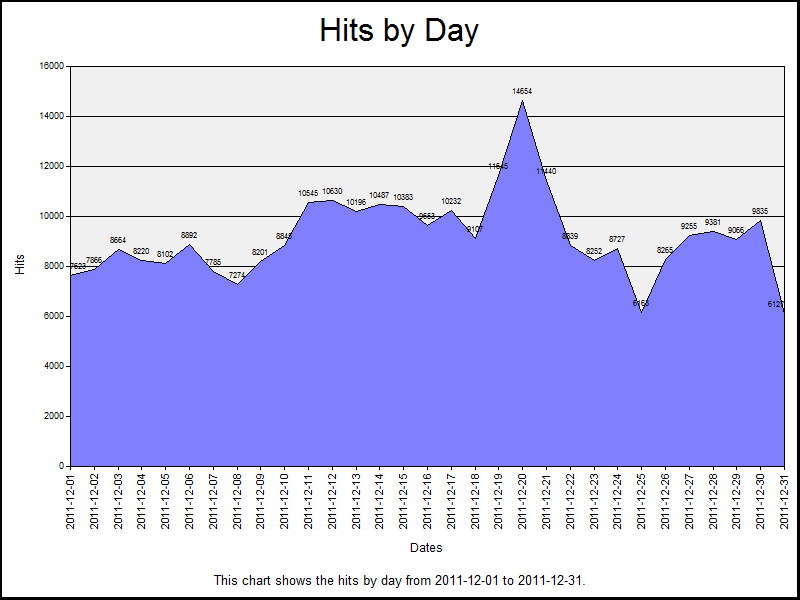
This looks a little more legible, but now let's look at setting some colors.
Setting a One-Color Gradient
Using the same JavaScript sample from earlier, we just need to make a couple of changes to the chart configuration script in order to use the SetOneColorGradient method:
// Set the title above the chart.
chart.HasTitle = true;
chart.Title.Caption = "Hits by Day"

// Set the border style for the chart.
chartSpace.Border.Color = "#000000";
chartSpace.Border.Weight = 2;

// Change the background color for the plot area.
chart.PlotArea.Interior.Color = "#f0f0f0";

// Specify the chart gradient styles.
chart.SeriesCollection(0).Interior.SetOneColorGradient(
 chartSpace.Constants.chGradientHorizontal,
 chartSpace.Constants.chGradientVariantEnd,
 1.0,
 "#ff0000");

// Set the font size for the chart values.
chart.SeriesCollection(0).DataLabelsCollection(0).Font.Size = 6;

// Get the start and end dates from the X axis.
var startDate = chart.Axes(0).CategoryLabels.Item(0).Caption;
var endDate = chart.Axes(0).CategoryLabels.Item(chart.Axes(0).CategoryLabels.ItemCount-1).Caption;

// Set the caption below the chart.
chartSpace.HasChartSpaceTitle = true;
chartSpace.ChartSpaceTitle.Caption =
    "This chart shows the hits by day from "
    + startDate + " to " + endDate + ".";
chartSpace.ChartSpaceTitle.Font.Size = 10;
chartSpace.ChartSpaceTitle.Position = chartSpace.Constants.chTitlePositionBottom;

// Set the style and caption for the Y axis.
chart.Axes(0).Font.Size = 8;
chart.Axes(0).HasTitle = true;
chart.Axes(0).Title.Caption = "Dates";
chart.Axes(0).Title.Font.Size = 9;

// Set the style and caption for the X axis.
chart.Axes(1).Font.Size = 7;
chart.Axes(1).HasTitle = true;
chart.Axes(1).Title.Caption = "Hits";
chart.Axes(1).Title.Font.Size = 9;
When you run the VBScript, this renders a chart that looks like the following:
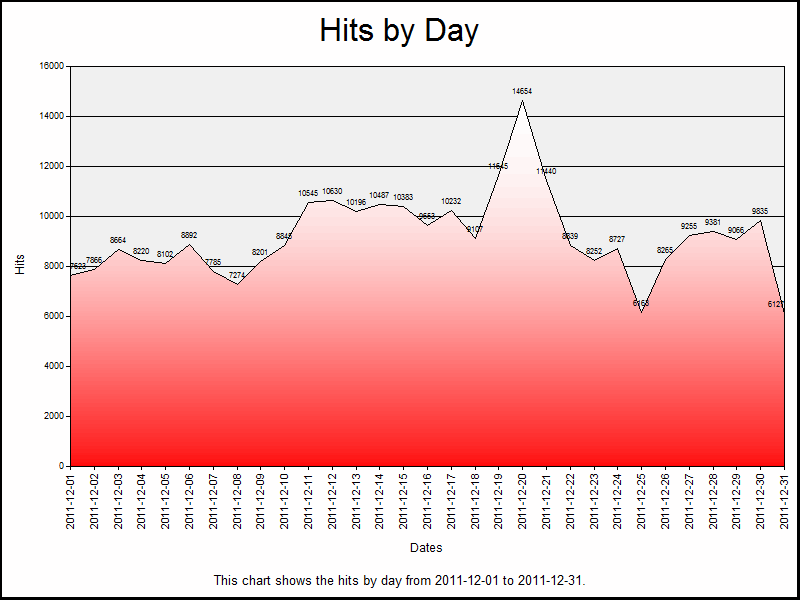
There are four parameters for the SetOneColorGradient method to look at:
| Parameter | Description |
|---|---|
GradientStyle |
This is a value from the ChartGradientStyleEnum enumeration, which specifies how the gradient will be displayed. For example: horizontally, vertically, diagonally, etc. |
GradientVariant |
This is a value from the ChartGradientVariantEnum enumeration, which specifies which direction the gradient will be displayed. For example: lighter to darker, from the inside to the outside, etc. |
GradientDegree |
This is a double value from 0.0 to 1.0, which specifies whether the gradient will range from the color to lighter or darker shades. |
Color |
This is a string that specifies the color. This can be a commonly-named color, such as "red," "blue," etc., or this can be an RGB hexadecimal value, such as "#ff0000" (red), "#0000ff" (blue), etc. (See my 216-Color Safe Web Palette blog post for a large series of hexadecimal color values.) |
Let's make some quick changes to parameters that we are passing to the SetOneColorGradient method and alter a few of the colors:
// Set the title above the chart.
chart.HasTitle = true;
chart.Title.Caption = "Hits by Day"

// Set the border style for the chart.
chartSpace.Border.Color = "#000000";
chartSpace.Border.Weight = 2;

// Change the background color for the plot area.
chart.PlotArea.Interior.Color = "#333333";

// Specify the chart gradient styles.
chart.SeriesCollection(0).Interior.SetOneColorGradient(
    chartSpace.Constants.chGradientHorizontal,
    chartSpace.Constants.chGradientVariantStart,
    0.0,
    "#00ff00");

// Set the font size for the chart values.
chart.SeriesCollection(0).DataLabelsCollection(0).Font.Size = 6;
chart.SeriesCollection(0).DataLabelsCollection(0).Font.Color = "#ffffff";

// Get the start and end dates from the X axis.
var startDate = chart.Axes(0).CategoryLabels.Item(0).Caption;
var endDate = chart.Axes(0).CategoryLabels.Item(chart.Axes(0).CategoryLabels.ItemCount-1).Caption;

// Set the caption below the chart.
chartSpace.HasChartSpaceTitle = true;
chartSpace.ChartSpaceTitle.Caption =
    "This chart shows the hits by day from "
    + startDate + " to " + endDate + ".";
chartSpace.ChartSpaceTitle.Font.Size = 10;
chartSpace.ChartSpaceTitle.Position = chartSpace.Constants.chTitlePositionBottom;

// Set the style and caption for the Y axis.
chart.Axes(0).Font.Size = 8;
chart.Axes(0).HasTitle = true;
chart.Axes(0).Title.Caption = "Dates";
chart.Axes(0).Title.Font.Size = 9;

// Set the style and caption for the X axis.
chart.Axes(1).Font.Size = 7;
chart.Axes(1).HasTitle = true;
chart.Axes(1).Title.Caption = "Hits";
chart.Axes(1).Title.Font.Size = 9;
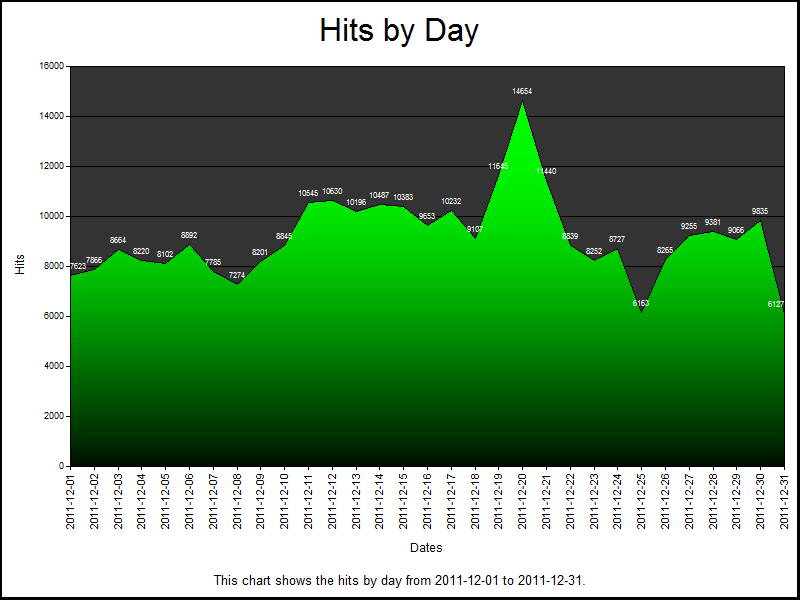
When you run the VBScript, that results in the following considerably cooler-looking chart:
Setting a Two-Color Gradient
The SetTwoColorGradient method offers more color flexibility than the one-color gradient method, and we only need to make a couple of changes to the JavaScript for the chart configuration script in order to use the new method:
// Set the title above the chart.
chart.HasTitle = true;
chart.Title.Caption = "Hits by Day"

// Set the border style for the chart.
chartSpace.Border.Color = "#000000";
chartSpace.Border.Weight = 2;

// Change the background color for the plot area.
chart.PlotArea.Interior.Color = "#FFFF99";

// Specify the chart gradient styles.
chart.SeriesCollection(0).Interior.SetTwoColorGradient(
 chartSpace.Constants.chGradientVertical,
 chartSpace.Constants.chGradientVariantStart,
 "#0066FF",
 "#00FFCC");

// Set the font size for the chart values.
chart.SeriesCollection(0).DataLabelsCollection(0).Font.Size = 6;

// Get the start and end dates from the X axis.
var startDate = chart.Axes(0).CategoryLabels.Item(0).Caption;
var endDate = chart.Axes(0).CategoryLabels.Item(chart.Axes(0).CategoryLabels.ItemCount-1).Caption;

// Set the caption below the chart.
chartSpace.HasChartSpaceTitle = true;
chartSpace.ChartSpaceTitle.Caption =
    "This chart shows the hits by day from "
    + startDate + " to " + endDate + ".";
chartSpace.ChartSpaceTitle.Font.Size = 10;
chartSpace.ChartSpaceTitle.Position = chartSpace.Constants.chTitlePositionBottom;

// Set the style and caption for the Y axis.
chart.Axes(0).Font.Size = 8;
chart.Axes(0).HasTitle = true;
chart.Axes(0).Title.Caption = "Dates";
chart.Axes(0).Title.Font.Size = 9;

// Set the style and caption for the X axis.
chart.Axes(1).Font.Size = 7;
chart.Axes(1).HasTitle = true;
chart.Axes(1).Title.Caption = "Hits";
chart.Axes(1).Title.Font.Size = 9;
When you run the VBScript, this will create the following chart:
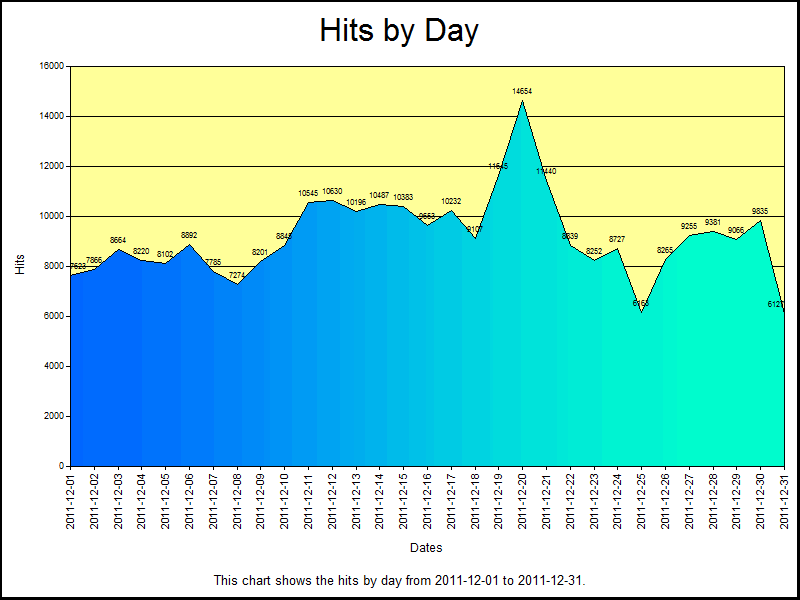
There are four parameters for the SetTwoColorGradient method to consider:
| Parameter | Description |
|---|---|
GradientStyle |
This is a value from the ChartGradientStyleEnum enumeration, which specifies how the gradient will be displayed. For example: horizontally, vertically, diagonally, etc. |
GradientVariant |
This is a value from the ChartGradientVariantEnum enumeration, which specifies which direction the gradient will be displayed. For example: lighter to darker, from the inside to the outside, etc. |
Color |
This is a string that specifies the first color for the gradient; this can be a commonly-named color, such as "red," "blue," etc., or this can be an RGB hexadecimal value, such as "#ff0000" (red), "#0000ff" (blue), etc. (See my 216-Color Safe Web Palette blog post for a large series of hexadecimal color values.) |
BackColor |
This is a string that specifies the second color for the gradient; this can be a value like the Color parameter. |
Using a Preset Gradient
There is an additional gradient method that uses a collection of preset color palettes; this method is appropriately named SetPresetGradient. Once again, we need to make a couple of changes to the JavaScript for the chart configuration script in order to use the new method:
// Set the title above the chart.
chart.HasTitle = true;
chart.Title.Caption = "Hits by Day"

// Set the border style for the chart.
chartSpace.Border.Color = "#000000";
chartSpace.Border.Weight = 2;

// Change the background color for the plot area.
chart.PlotArea.Interior.Color = "#EEFFDD";

// Specify the chart gradient styles.
chart.SeriesCollection(0).Interior.SetPresetGradient(
 chartSpace.Constants.chGradientHorizontal,
 chartSpace.Constants.chGradientVariantStart,
 chartSpace.Constants.chGradientFire);

// Set the font size for the chart values.
chart.SeriesCollection(0).DataLabelsCollection(0).Font.Size = 6;

// Get the start and end dates from the X axis.
var startDate = chart.Axes(0).CategoryLabels.Item(0).Caption;
var endDate = chart.Axes(0).CategoryLabels.Item(chart.Axes(0).CategoryLabels.ItemCount-1).Caption;

// Set the caption below the chart.
chartSpace.HasChartSpaceTitle = true;
chartSpace.ChartSpaceTitle.Caption =
    "This chart shows the hits by day from "
    + startDate + " to " + endDate + ".";
chartSpace.ChartSpaceTitle.Font.Size = 10;
chartSpace.ChartSpaceTitle.Position = chartSpace.Constants.chTitlePositionBottom;

// Set the style and caption for the Y axis.
chart.Axes(0).Font.Size = 8;
chart.Axes(0).HasTitle = true;
chart.Axes(0).Title.Caption = "Dates";
chart.Axes(0).Title.Font.Size = 9;

// Set the style and caption for the X axis.
chart.Axes(1).Font.Size = 7;
chart.Axes(1).HasTitle = true;
chart.Axes(1).Title.Caption = "Hits";
chart.Axes(1).Title.Font.Size = 9;
When you run the VBScript, this will create the following chart:
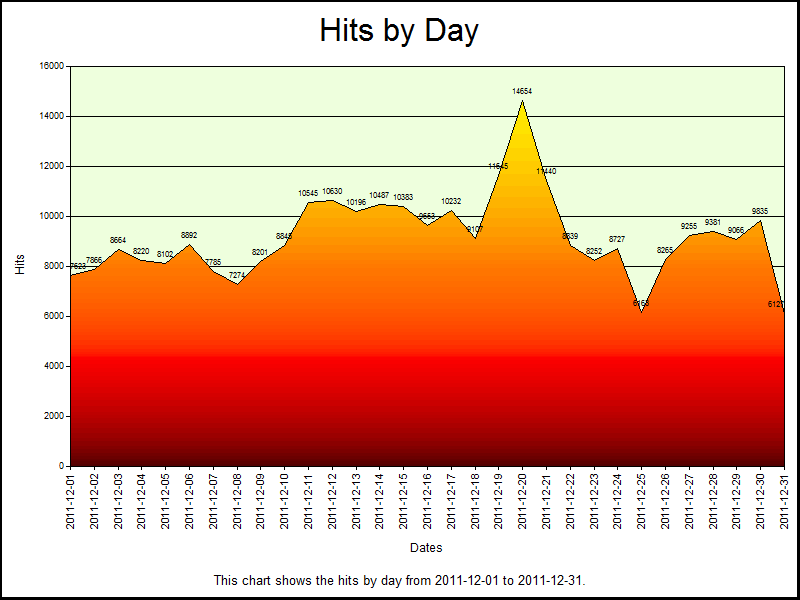
There are three parameters for the SetPresetGradient method to look at:
| Parameter | Description |
|---|---|
GradientStyle |
This is a value from the ChartGradientStyleEnum enumeration, which specifies how the gradient will be displayed. For example: horizontally, vertically, diagonally, etc. |
GradientVariant |
This is a value from the ChartGradientVariantEnum enumeration, which specifies which direction the gradient will be displayed. For example: lighter to darker, from the inside to the outside, etc. |
GradientPreset |
This is a value from the ChartPresetGradientTypeEnum enumeration, which specifies the gradient preset palette. |
There are several of preset gradients in the ChartPresetGradientTypeEnum enumeration, and a little experimentation will yield the best results.
Using 3-D Area Charts
For one last sample, I'd like to show you what gradients can do for your 3-D area charts. To do so, we first need to make a couple of small changes the VBScript that will create the chart:
Option Explicit

' Declare the variables.
Dim objLogQuery, strSQL
Dim objInputW3CFormat, objOutputChartFormat

' Create the Log Parser objects.
Set objLogQuery = WScript.CreateObject("MSUtil.LogQuery")
Set objInputW3CFormat = WScript.CreateObject("MSUtil.LogQuery.W3CInputFormat")
Set objOutputChartFormat = WScript.CreateObject("MSUtil.LogQuery.ChartOutputFormat")

' Define the SQL query.
strSQL = "SELECT Date, COUNT(*) AS Hits " & _
    " INTO _Part2.gif " & _
    " FROM *.log " & _
    " GROUP BY Date " & _
    " ORDER BY Date"

' Specify the chart options.
objOutputChartFormat.groupSize = "1024x768"
objOutputChartFormat.fileType = "GIF"
objOutputChartFormat.chartType = "Area3D"
objOutputChartFormat.categories = "ON"
objOutputChartFormat.values = "ON"
objOutputChartFormat.legend = "OFF"
objOutputChartFormat.config = "Part2.js"

' Execute the SQL statement to create the chart.
objLogQuery.ExecuteBatch strSQL, objInputW3CFormat, objOutputChartFormat
Next, we need to update the JavaScript for the chart configuration script to work with the new VBScript; for the most part, I'm just updating font sizes and chart colors:
// Set the title above the chart.
chart.HasTitle = true;
chart.Title.Caption = "Hits by Day"

// Clear the caption for the chart series.
chart.SeriesCollection(0).Caption = "";

// Set the border style for the chart.
chartSpace.Border.Color = "#000000";
chartSpace.Border.Weight = 2;

// Change the background color for the plot area.
chart.PlotArea.Interior.Color = "#FFFFCC";

// Specify the chart gradient styles.
chart.SeriesCollection(0).Interior.SetTwoColorGradient(
    chartSpace.Constants.chGradientHorizontal,
    chartSpace.Constants.chGradientVariantEnd,
    "#00CCFF",
    "#FFFFFF");

// Set the font size for the chart values.
chart.SeriesCollection(0).DataLabelsCollection(0).Font.Size = 7;

// Get the start and end dates from the X axis.
var startDate = chart.Axes(0).CategoryLabels.Item(0).Caption;
var endDate = chart.Axes(0).CategoryLabels.Item(chart.Axes(0).CategoryLabels.ItemCount-1).Caption;

// Set the caption below the chart.
chartSpace.HasChartSpaceTitle = true;
chartSpace.ChartSpaceTitle.Caption =
    "This chart shows the hits by day from "
    + startDate + " to " + endDate + ".";
chartSpace.ChartSpaceTitle.Font.Size = 10;
chartSpace.ChartSpaceTitle.Position = chartSpace.Constants.chTitlePositionBottom;

// Set the style and caption for the Y axis.
chart.Axes(0).Font.Size = 10;
chart.Axes(0).HasTitle = true;
chart.Axes(0).Title.Caption = "Dates";
chart.Axes(0).Title.Font.Size = 11;

// Set the style and caption for the X axis.
chart.Axes(1).Font.Size = 9;
chart.Axes(1).HasTitle = true;
chart.Axes(1).Title.Caption = "Hits";
chart.Axes(1).Title.Font.Size = 11;
When you run the VBScript, this will create the following chart:
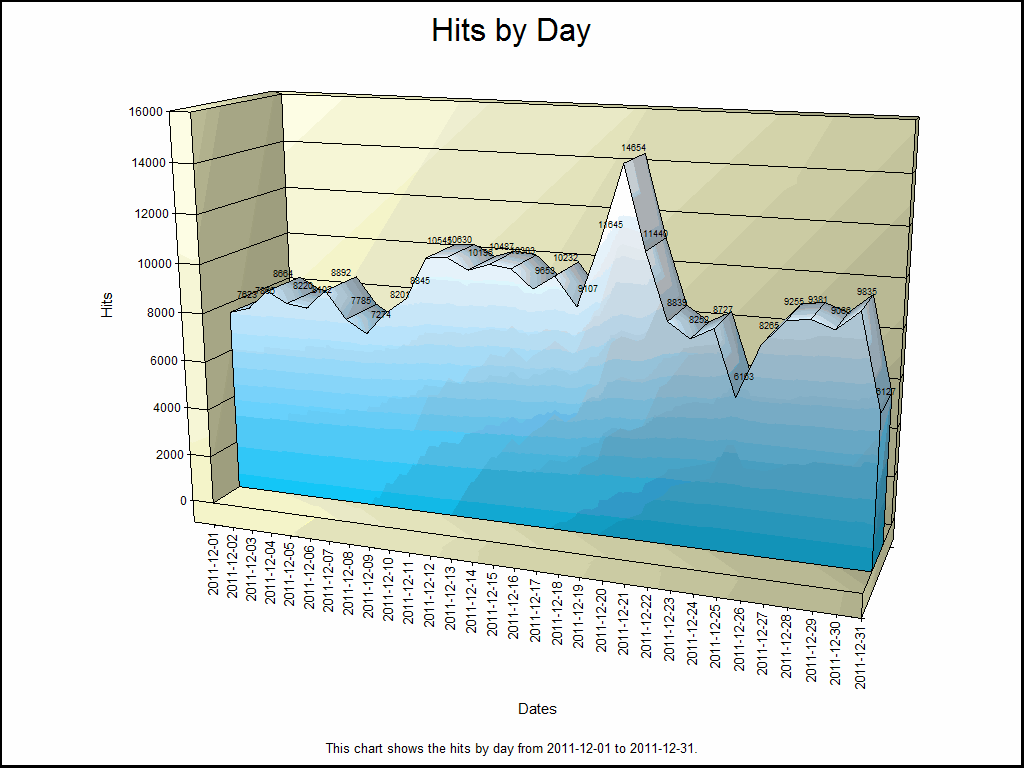
Summary
In this blog post, I've written a lot of code samples in order to show you four different ways to set gradients for your Log Parser area charts. In future posts, I'll show you how to do some more cool things with some other types of charts.
;-]
Note: This blog was originally posted at http://blogs.msdn.com/robert_mcmurray/
Advanced Log Parser Charts Part 1 - Working With Configuration Scripts
28 January 2012 • by Bob • IIS, LogParser, Scripting
I recently had a situation where I wanted to customize the chart output from Log Parser, and after a bunch of research I eventually arrived at the conclusion that configuration scripts to create customized charts are probably the least-documented feature of Log Parser. After a lot of experimentation, (and a bit of frustration), I finally managed to achieve the results that I wanted. With that in mind, I thought that it would make a great blog series if I documented some of the settings that I used.
Log Parser and Chart Configuration Scripts
When you look in the Log Parser help file, it makes mention of using configuration scripts to customize charts, and it provides the following small JavaScript sample:
// Add a caption
chartSpace.HasChartSpaceTitle = true;
chartSpace.ChartSpaceTitle.Caption = "Generated by Log Parser 2.2";
chartSpace.ChartSpaceTitle.Font.Size = 6;
chartSpace.ChartSpaceTitle.Position = chartSpace.Constants.chTitlePositionBottom;

// Change the background color
chart.PlotArea.Interior.Color = chartSpace.Constants.chColorNone;
Unfortunately, this sample isn't very useful, although I found dozens of forum posts that quote this sample as a way to do things - but it's the only sample that most people cite. The Log Parser help file mentions looking at the MSDN ChartSpace Object Model documentation, but that documentation is only slightly more useful. These two references are what led me to my earlier conclusion that chart configuration scripts are not well-documented, and especially when you are trying to do something with Log Parser.
What I found to be particularly helpful was to use the Log Parser COM interface and write scripts by using Adersoft's VbsEdit and JsEdit. In case you haven't used either of those applications, they are great IDEs for writing scripts; they both give you a great debugging environment, and they have a great object browser that I used to discover what options were available to me. In the end, these two editors made it possible to create the chart configuration scripts that I will discuss in this blog series.
By the way, chart configuration scripts can be written in VBScript or JavaScript, but for this blog I will use VBScript for the Log Parser COM samples and JavaScript for the configuration script samples. I didn't have to do it that way, but it seemed like a good idea to help differentiate between the samples.
Using COM versus the Command-Line
For the samples in this blog series, I will use Log Parser's COM interface and VBScript to create my charts, but this is not necessary; everything that I am documenting can be done from the command-line version of Log parser, and I'll give you some quick examples to see the differences.
The following examples generate some simple area charts that plot the total number of hits by day, and both examples do exactly the same thing:
Command-Line:
logparser.exe "
COM Interface:
Option Explicit

Dim objLogQuery, strSQL
Dim objInputW3CFormat, objOutputChartFormat

Set objLogQuery = WScript.CreateObject("MSUtil.LogQuery")
Set objInputW3CFormat = WScript.CreateObject("MSUtil.LogQuery.W3CInputFormat")
Set objOutputChartFormat = WScript.CreateObject("MSUtil.LogQuery.ChartOutputFormat")

strSQL = "SELECT Date, COUNT(*) AS Hits " & _
    " INTO HitsByDay.gif " & _
    " FROM *.log " & _
    " GROUP BY Date " & _
    " ORDER BY Date"

objOutputChartFormat.groupSize = "800x600"
objOutputChartFormat.fileType = "GIF"
objOutputChartFormat.chartType = "Area"
objOutputChartFormat.categories = "ON"
objOutputChartFormat.values = "ON"
objOutputChartFormat.legend = "OFF"

objLogQuery.ExecuteBatch strSQL, objInputW3CFormat, objOutputChartFormat
Ugly Charts
Using some of the log files from one of my websites, the above samples created the following basic chart:

Taking a look at this chart makes it easy to see why you would want to customize your output; that light blue is pretty awful, and those values are pretty hard to read.
Specifying Configuration Scripts
If you remember the incredibly basic configuration script from earlier, you only need to add one parameter to each example in order to specify the configuration script:
Command-Line:
logparser.exe "
COM Interface:
Option Explicit

Dim objLogQuery, strSQL
Dim objInputW3CFormat, objOutputChartFormat

Set objLogQuery = WScript.CreateObject("MSUtil.LogQuery")
Set objInputW3CFormat = WScript.CreateObject("MSUtil.LogQuery.W3CInputFormat")
Set objOutputChartFormat = WScript.CreateObject("MSUtil.LogQuery.ChartOutputFormat")

strSQL = "SELECT Date, COUNT(*) AS Hits " & _
    " INTO HitsByDay.gif " & _
    " FROM *.log " & _
    " GROUP BY Date " & _
    " ORDER BY Date"

objOutputChartFormat.groupSize = "800x600"
objOutputChartFormat.fileType = "GIF"
objOutputChartFormat.chartType = "Area"
objOutputChartFormat.categories = "ON"
objOutputChartFormat.values = "ON"
objOutputChartFormat.legend = "OFF"
objOutputChartFormat.config = "HitsByDay.js"

objLogQuery.ExecuteBatch strSQL, objInputW3CFormat, objOutputChartFormat
Simple Output
Taking a look at the resulting chart, you can see why I mentioned earlier that the configuration script wasn't very useful; all it does is add a centered title to the bottom of the chart:
Yup - that's a pretty useless sample configuration script for chart customization.
Next...
In my subsequent posts, I'll show how to make this chart (and several other types of charts) look a lot better.
Note: This blog was originally posted at http://blogs.msdn.com/robert_mcmurray/
What I do not admire...
27 January 2012 • by Bob • Rants
A friend of mine recently posted the following news link to Facebook:
Atheist teen forces school to remove prayer from wall after 49 years
He accompanied the link with a statement which stated that he admired the young girl for standing up for herself despite all of the misfortune that has come her way. While I strongly object to the hostility that has been directed at her, I do not admire this girl; not because I might disagree with her, but simply because this is yet another symbol of what is so often wrong with this country. While I strongly support standing up for what you believe in - or in this case what you don't believe in - do not mistake self-centered motives for moral courage.
At sixteen, you are convinced that the world revolves around you. (I have just raised three teenagers, so I am speaking with the voice of recent experience.) The question here is not whether the state is cramming religion down someone's throat - which it clearly is not - but whether an entire community should be inconvenienced for the self-interested attitudes of a single detractor. This solitary malcontent is asking for her community to discontinue a half-century of tradition, and she is demanding that thousands of previous students, parents, and faculty look the other way while she forces the world around her into a mold that is custom-fit for her and no one else; how immature.
There are so many things in contemporary society for which we are asked to look the other way if we have an objection; simply flipping through a magazine or turning on the television will provide ample material for one person or other to raise a protest. You might agree with their objections, or you might disagree, but we live in a free society where you do not have the right to never be offended. In our culture the generally-accepted answer is for the complainant to avoid what offends them; we do not require every publisher to pander to the wishes of every objector. If we managed to remove everything that offended any individual person then we would have nothing left to look at or listen to. (For example, I can't stand country music, but I don't sue Nashville in order to force them to stop cranking out album after album of music that makes me want to hurl.)
But that is not the case in this situation. What is taking place here is that a single student has raised an objection out of self-centered desire; perhaps it is a desire to get her way, perhaps it is a desire for attention, or perhaps she has ulterior ambitions in mind. In the end, it really doesn't matter. If you read the "prayer" in question, there is nothing in it that should be offensive to anyone; it is not forcing religion on anyone - it is simply a call to be a better person:
"Our Heavenly Father,
"Grant us each day the desire to do our best, to grow mentally and morally as well as physically, to be kind and helpful to our classmates and teachers, to be honest with ourselves as well as others. Help us to be good sports and smile when we lose as well as when we win. Teach us the value of true friendship. Help us always to conduct ourselves so as to bring credit to Cranston High School West.
"Amen."
Since when is being good offensive to anyone? Is it because she wants to violate the thoughts of goodwill that are expressed within those few words? Does she find it threatening that someone wishes for her to aspire to be better than she is? (Note: You may choose to believe in God, or you may not, that's your choice; but that's actually beside the point in this scenario.)
What is extremely revealing of her attitude is her cause for atheism; when she was ten years old, God didn't do what she wanted, so she decided that there is no God. It's an odd coincidence that the source of her disbelief was a similar situation to her current predicament; when the school voted to keep the prayer banner in question, she lost faith in them. If her parents had opposed her outspoken position, she would have undoubtedly lost faith in them. If the courts rule against her, then she will lose faith in government. This is a bad set of precedents that she is establishing; she wants the world to bow down to her demands, and if they don't comply, then she will simply complain to someone else until she gets her way. Ultimately, it's a bad signal to society when we do so.
This is where she is the most wrong; we live in a tolerant culture, and tolerance means accepting the fact that someone has a right to a conflicting opinion. This is true for religion, politics, sports, entertainment, etc. No one should be allowed to force everyone else to agree with them. So I reiterate my earlier statement: do not mistake self-centered motives for moral courage.
The Wheels of Time Have Rolled Over Me
09 January 2012 • by Bob • Humor
When we moved to the Seattle area, one of the selling points for our new home was the backyard. The back door of our house empties out onto two large, wooden decks which overlook a large greenbelt of towering evergreen and maple trees. When our son was younger, he and his friends would play paintball and other games in those woods for hours.

My son is currently in college, so he's moved on from such 'juvenile' pursuits as paintball; now a fresh crop of kids has taken over the timberland. This new batch of boys has replaced the paintball pistols of yesteryear with airsoft artillery; in the summer season, we hear them waging war till all hours. This has never bothered me at all - it's simply part of the experience of living near a cool stretch of forest.
But recently, a few of the boys were skirmishing through the thickets, and one of them was crouching low to avoid being seen by his pursuers as he took a running shortcut across my backyard. I happened to look out the window as this unfortunate event unfolded, and we had just laid fresh layer of bark throughout the yard. With this in mind, and before I had a chance to consider the consequences, I had opened the window and yelled, "Hey! Don't run through my backyard!"
And then it hit me - I had officially become Old Man McMurray; the antiquated ancient who lives on the hill and yells, "Hey, you youngsters get out of my yard!"
[Deep Sigh.] 
Is it time to buy a new guitar yet?
Weight Loss Recap for 2011 - and Why I Won't Write a Book
31 December 2011 • by Bob • General
One of my favorite comic strips is Pearls Before Swine, and the comic from September 30th, 2011, sums up why I would never be able to write a book about weight loss:

If you had read my blog post entitled The Geek's Guide to Weight Loss, you would have noticed that all I did to lose 50 pounds in six months was to eat less calories each day than my body uses on a daily basis. In the following six months, I've kept off the weight by making sure that I eat only as many calories as my body actually needs.
As a year-end recap, here's my average weight month-by-month for 2011:
| Month | Average |
|---|---|
| January | 203 |
| February | 190 |
| March | 178 |
| April | 171 |
| May | 166 |
| June | 164 |
| July | 160 |
| August | 160 |
| September | 159 |
| October | 159 |
| November | 160 |
| December | 161 |
My day-to-day chart for the entire year looks like the following:

I had a spike of a pound or two at Christmas - nobody's perfect. 
Storing IIS 7.5 WebDAV Properties in NTFS Alternate Data Streams
30 December 2011 • by Bob • IIS, Scripting, WebDAV
Two months ago Microsoft published an update for the WebDAV module that shipped with IIS 7.5 in Windows 7 and Windows Server 2008 R2, and this update is documented in the Microsoft Knowledge Base article ID 2593591:
This update enables administrators to configure the IIS 7.5 WebDAV module to store WebDAV-based properties in NTFS alternate data streams instead of properties.dav files. By way of explanation, WebDAV has two HTTP methods - PROPFIND and PROPPATCH - which enable WebDAV clients to store custom properties on a WebDAV server. These properties may contain anything that makes sense to the WebDAV client. For example, if you were creating a WebDAV client that stored Microsoft Office documents on a WebDAV server, you could store metadata in WebDAV properties for each document, like the author's name, document abstract, etc.
By default, the IIS 7.5 WebDAV module stores properties in system files in each folder of a website that are called properties.dav. These files are essentially text-based INI files that contain the encoded WebDAV properties for the various files in each folder. In contrast, the WebDAV functionality in IIS 6 had used NTFS alternate data streams to store WebDAV properties, which are described in the following Microsoft TechNet article:
After we shipped IIS 6, we received a lot of complaints from customers who were losing their WebDAV properties when they were copying their website files between NTFS and FAT file systems. This was expected behavior - NTFS alternate data streams will be removed when you copy files from NTFS to FAT. To remedy this situation, in IIS 7.0 we decided to switch to using INI-based functionality in order to prevent losing custom WebDAV properties when files are copied between disparate file systems.
When we were designing IIS 7.5, we wanted to add optional support for storing WebDAV properties in NTFS alternate data streams, and we wanted to do so because NTFS alternate data streams might perform faster when you are working with larger websites; however, we ran out of time to implement that functionality before we shipped Windows 7 and Windows Server 2008 R2. That being said, we still wanted to implement the feature, and the update that I listed at the beginning of this blog contains the functionality that is required to enable storing WebDAV properties in NTFS alternate data streams.
Enabling Alternate Data Streams for WebDAV Properties
The above information is good news for anyone who is storing large quantities of WebDAV properties, so your next logical question might be: "How do I enable NTFS alternate data streams for WebDAV properties ?"
Actually, it's really simple. In the KB article that I listed in the beginning of this blog, I documented two methods that show you how to enable storing WebDAV properties in NTFS alternate data streams:
- By modifying your applicationHost.config file
- By using AppCmd.exe
For the sake of completeness, I will repost some of the information here.
Method #1: Modifying your applicationHost.config file
You can enable storing WebDAV properties in alternate data streams for the simple property provider by adding a "useAlternateDataStreams" attribute to the property provider’s registration settings in your applicationHost.config file, which is highlighted in the following global configuration snippet:
<webdav>
  <globalSettings>
    <propertyStores>
      <add name="webdav_simple_prop"
        image="%windir%\system32\inetsrv\webdav_simple_prop.dll"
        image32="%windir%\syswow64\inetsrv\webdav_simple_prop.dll"
        useAlternateDataStreams="true" />
    </propertyStores>
    <lockStores>
      <add name="webdav_simple_lock"
        image="%windir%\system32\inetsrv\webdav_simple_lock.dll"
        image32="%windir%\syswow64\inetsrv\webdav_simple_lock.dll" />
    </lockStores>
  </globalSettings>
  <authoring>
    <locks enabled="true" lockStore="webdav_simple_lock" />
    <properties>
      <clear />
      <add xmlNamespace="*" propertyStore="webdav_simple_prop" />
    </properties>
  </authoring>
  <authoringRules />
</webdav>
Once you have enabled the feature, you have to restart IIS in order for it to take effect.
Method #2: Using AppCmd.exe
I wrote the following batch file for the KB article, which uses AppCmd.exe to enable the NTFS alternate data streams functionality, and it automatically restarts IIS for you:
pushd "%SystemRoot%\System32\Inetsrv"
iisreset /stop
appcmd.exe set config -section:system.webServer/webdav/globalSettings -propertyStores.[name='webdav_simple_prop'].useAlternateDataStreams:true /commit:apphost
iisreset /start
popd
Migrating IIS 7 WebDAV Properties into Alternate Data Streams
Once you've enabled storing WebDAV properties in alternate data streams, you are presented with a new challenge: "How do I migrate my existing WebDAV properties?"
Here's the situation, once you have enabled the alternate data streams feature, the WebDAV property provider is going to ignore any properties that have already been set in properties.dav files. With this in mind, I wrote a script that will migrate all of the WebDAV properties from all of the properties.dav files in a website into their corresponding per-file NTFS alternate data streams.
To use the following script, you will need to update the folder path in the third line of the script with the path to your website. Once you have done that, you can run the script to migrate your existing WebDAV properties.
NOTE: You need to run this script as an administrator!
Option Explicit

Dim arrFolderTree, intFolderCount

arrFolderTree = BuildFolderTree("C:\inetpub\wwwroot")

For intFolderCount = 1 To UBound(arrFolderTree)
  MigratePropertiesToADS arrFolderTree(intFolderCount)
Next

Sub MigratePropertiesToADS(strFolderPath)
  On Error Resume Next

  ' Declare all our variables
  Dim objTempFSO, objTempFolder
  Dim objTempPropertiesFile, objTempAlternateDataStream
  Dim strTempLine, strTempObjectName, blnTempOpenStream
  Const strTempPropertiesDAV = "\properties.dav"
  Const strTempAlternateDataStream = ":properties.dav:$DATA"

  ' Create a file system object.
  Set objTempFSO = WScript.CreateObject("Scripting.FileSystemObject")

  ' Flag the function as having a closed output stream.
  blnTempOpenStream = False

  ' Retrieve a folder object for the path.
  Set objTempFolder = objTempFSO.GetFolder(strFolderPath)

  ' Check for a properties.dav file in the current folder.
  If objTempFSO.FileExists(objTempFolder.Path & strTempPropertiesDAV) Then
    ' Open the properties.dav file for the current folder.
    Set objTempPropertiesFile = objTempFSO.OpenTextFile(objTempFolder.Path & _
      strTempPropertiesDAV,1,False,-1)
    ' Loop through the properties.dav file.
    Do While Not objTempPropertiesFile.AtEndOfStream
      ' Retrieve a line from the properties.dav file.
      strTempLine = Trim(objTempPropertiesFile.ReadLine)
      ' Check if it's a section heading.
      If Left(strTempLine,1) = "[" And Right(strTempLine,1) = "]" Then
        ' Parse the name of the object (file/folder).
        strTempObjectName = Replace(Trim(Mid(strTempLine,2,Len(strTempLine)-2)),"/","\")
        ' Strip off a backslash from the parent folder.
        If Len(strTempObjectName) = 1 Then strTempObjectName = ""
        ' Check to see if the file/folder exists.
        If objTempFSO.FileExists(objTempFolder.Path & _
             strTempObjectName) Or objTempFSO.FolderExists(objTempFolder.Path & _
             strTempObjectName) Then
          ' Create a file object for the alternate data stream.
          Set objTempAlternateDataStream = objTempFSO.CreateTextFile(objTempFolder.Path & _
             strTempObjectName & _
             strTempAlternateDataStream,True,-1)
          ' Write the WebDAV section header.
          objTempAlternateDataStream.WriteLine "[WebDAV]"
          ' Flag the function as having an open output stream.
          blnTempOpenStream = True
        Else
          ' Flag the function as having a closed output stream.
          blnTempOpenStream = False
        End If
      Else
        ' Check if we have an open output stream.
        If blnTempOpenStream = True Then
          ' Output a property.
          objTempAlternateDataStream.WriteLine strTempLine
        End If
      End If
    Loop
    ' Close the properties.dav file.
    objTempPropertiesFile.Close
  End If
  Set objTempFSO = Nothing
End Sub

Function BuildFolderTree(strTempBaseFolder)
  On Error Resume Next

  ' Declare all our variables
  Dim objTempFSO
  Dim objTempFolder
  Dim objTempSubFolder
  Dim lngTempFolderCount
  Dim lngTempBaseCount

  ' Create our file system object.
  Set objTempFSO = WScript.CreateObject("Scripting.FileSystemObject")

  ' Define the initial values for our folder counters.
  lngTempFolderCount = 1
  lngTempBaseCount = 0

  ' Dimension an array to hold the folder names.
  ReDim strTempFolders(1)

  ' Store the root folder in our array.
  strTempFolders(lngTempFolderCount) = strTempBaseFolder

  ' Loop while we still have folders to process.
  While lngTempFolderCount <> lngTempBaseCount
    ' Set up a folder object to a base folder.
    Set objTempFolder = objTempFSO.GetFolder(strTempFolders(lngTempBaseCount+1))
    ' Loop through the collection of subfolders for the base folder.
    For Each objTempSubFolder In objTempFolder.SubFolders
      ' Increment our folder count.
      lngTempFolderCount = lngTempFolderCount + 1
      ' Increase our array size
      ReDim Preserve strTempFolders(lngTempFolderCount)
      ' Store the folder name in our array.
      strTempFolders(lngTempFolderCount) = objTempSubFolder.Path
    Next
    ' Increment the base folder counter.
    lngTempBaseCount = lngTempBaseCount + 1
  Wend

  ' Return the array of folder names.
  BuildFolderTree = strTempFolders

End Function
In Closing
I have a couple final notes for you to consider:
- Enabling NTFS alternate data streams is a global WebDAV setting; you cannot do this on a per-site basis.
- As with IIS 6, once you enable storing WebDAV properties in NTFS alternate data streams, you will lose your WebDAV properties if you copy your files between NTFS and FAT file systems.
Note: This blog was originally posted at http://blogs.msdn.com/robert_mcmurray/
A Few Thoughts on my 27th Anniversary
29 December 2011 • by Bob • General, Marriage
When I was a child, there was an excitement that preceded Christmas as it approached each year. I am sure that most everyone knows what I mean by that statement; whether you are longing for Christmas, Hanukah, Ramadan, Kwanzaa, or even if you are an atheist that participates in some form of secularized holiday celebration. There is a sense of childhood excitement that surrounds the season; it could be the gifts, the decorations, the music, or a host of other contributing factors.
In a small way, I experience something like that feeling each week of the year; every Wednesday night for the past decade or so, my wife and I have had "Date Night." I do my best to never schedule anything that conflicts with this tradition; and as each Wednesday comes around, I look forward to going out to dinner or a movie with my wife in something of that same good-natured attitude of child-like expectation that I used to have at Christmas.
Date Night is a recent endeavor for us; which is unfortunate, but somewhat unavoidable. Both Kathleen and I went directly from living at home to being young, married, and poor; and soon after that we became parents. We were great friends in High School and our first year of college, but we jumped forward several years almost overnight; and as a result, we went from being children to being parents with barely a chance to discover who the other person really was.

Please don't misunderstand me - parenthood was a mixed blessing of training and teething, schooldays and sporting events, chaos and concerts, happiness and heartaches; and I would not trade a moment of my joys or sorrows as a parent. (Well, maybe I could do without the memories from one of my daughter's first boyfriends - and he knows who he is.  ) But that being said, Kathleen and I missed out on the opportunity to explore who we were as a couple all those years ago; which is why I enjoy each week's rediscovery that long before I loved my wife, I actually liked my wife.
There is a wonderful scene in the musical Fiddler on the Roof where the main character, Tevye, asks Golde, his wife of twenty-five years, "Do you love me?" I didn't fully understand this scene when I was younger; I simply thought that it was amusing.
But in recent years, Golde's responses to Tevye's simple questions have impacted me differently.
"For 25 years I've washed your clothes,
Cooked your meals, cleaned your house,
Given you children, milked your cow.
After 25 years, why talk about love right now?
"For 25 years I've lived with him,
Fought him, starved with him.
25 years my bed is his;
If that's not love, what is?"
I truly loved my wife on the day that we exchanged rings and we both said "I do" before our friends and family. The reasons why I loved my wife on that day are still there: she has an odd sense of humor, we complement each other well, and she is my best friend. But the trials and tribulations that we have endured together over the past twenty-seven years have changed the dynamics of that relationship.

In our marriage vows Kathleen and I promised to love each other for richer or poorer, for better or worse, and in sickness or in health; and we have endured each of those seasons in due course over our many years of marriage. It is precisely that collection of experiences that has bonded us together in ways for which a night out every week could never substitute; in much the same way that veterans of a war are bonded together in a way that supersedes the love between the closest of siblings.

Two years ago, on our twenty-fifth anniversary, I gave Kathleen a framed portrait that contains our wedding photos and the following quote from Mark Twain:
"Love seems the swiftest, but it is the slowest of all growths. No man or woman really knows what perfect love is until they have been married a quarter of a century."
In many ways that sums up my feelings: I loved my wife when I was nineteen for as much as I understood that concept at the time; but now that I am somewhat older, and perhaps somewhat wiser, I love my wife in ways that I couldn't possibly have understood back then. I tell Kathleen every day that she is my favorite person; and because of that, every week may not be Christmas, but just the same - I look forward to spending each week with her all the more.
Changing the Identity of the FTP 7 Extensibility Process
01 December 2011 • by Bob • FTP, Extensibility, IIS
Many IIS 7 FTP developers may not have noticed, but all custom FTP 7 extensibility providers execute through COM+ in a DLLHOST.exe process, which runs as NETWORK SERVICE by default. That being said, NETWORK SERVICE does not always have the right permissions to access some of the areas on your system where you may be attempting to implement custom functionality. What this means is, some of the custom features that you try to implement may not work as expected.
For example, if you look at the custom FTP logging provider in following walkthrough, the provider may not have sufficient permissions to create log files in the folder that you specify:
How to Use Managed Code (C#) to Create a Simple FTP Logging Provider
There are a couple of ways that you can resolve this issue:
- First of all, you could grant NETWORK SERVICE permissions to the destination folder.
- Second, you could change the identity of the FTP extensibility process so that it runs as a user that has permissions for the destination folder.
For what it's worth, I usually change the identity of the FTP 7 extensibility process on my servers so that I can set custom permissions for situations like this.
Here's how you do that:
- Create a user account that is only a member of the built-in Guests group, that way you're always using an extremely low-privileged account on your system. (You can also set custom security policies for that account, but that's outside the cope of this blog.)
- Open Administrative Tools on your Windows system and double-click Component Services.
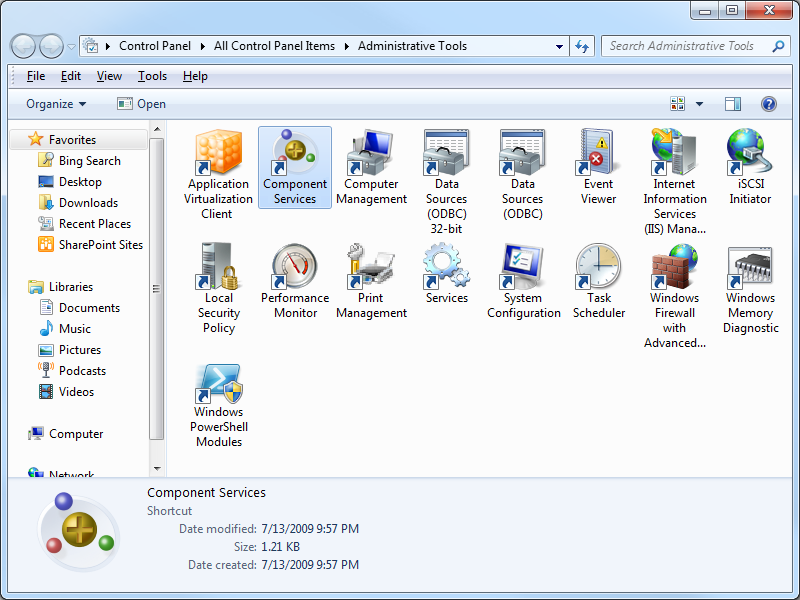
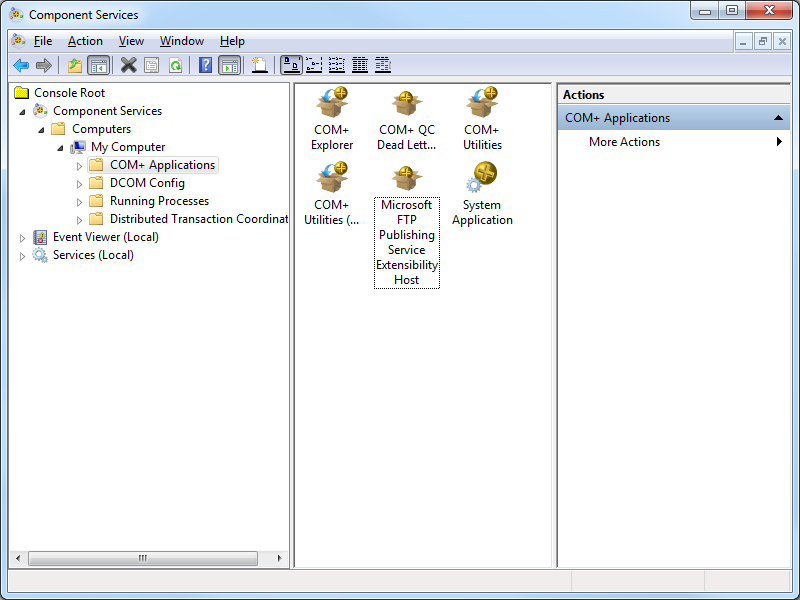
- Expand Component Services, then expand Computers, then My Computer, and then highlight COM+ Applications.
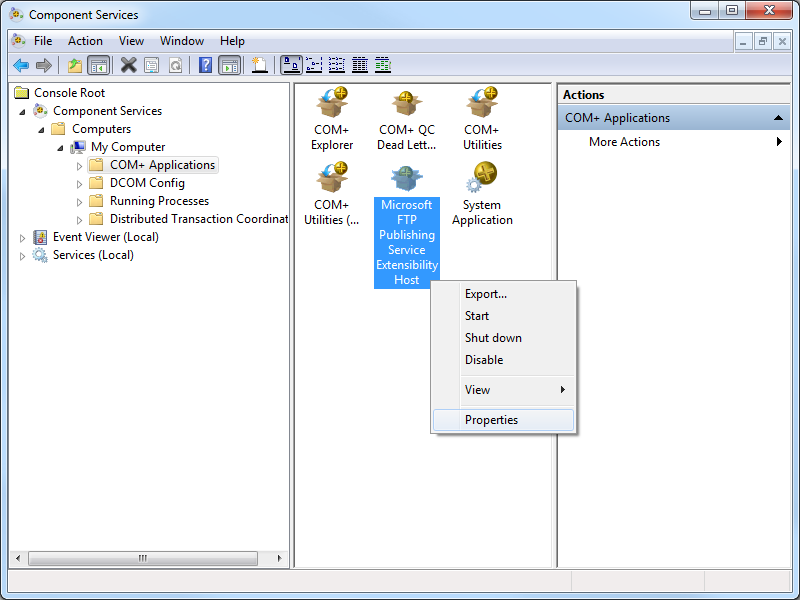
- Right-click Microsoft FTP Publishing Service Extensibility Host and then click Properties.
- Click the Identity tab, and then click the This userradio button.
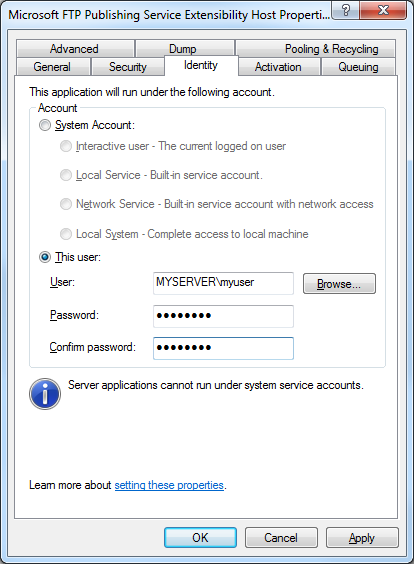
- Enter the credentials for the low-privileged user account that you created earlier, and then click OK.
Once you have done this, you can set permissions for this account whenever you need to specify permissions for situations like I described earlier.
Personally, I prefer to change the identity of the FTP 7 extensibility process instead of granting NETWORK SERVICE more permissions than it probably needs.
Note: This blog was originally posted at http://blogs.msdn.com/robert_mcmurray/