Ride Notes for August 7th, 2014
07 August 2014 • by Bob • Bicycling
Today was one of my “Short Days,” meaning that I would ride my usual 17-mile trek from my house through Saguaro National Park and home again. That being said, I did something different today – I have always ridden solo, but today I rode with David, who is an old friend of mine from high school.

I have to mention that the idea of riding with someone else had me worried for two primary reasons:
- What if he rides faster than I do and I can’t keep up with him?
- What if he rides slower than I do and he can’t keep up with me?
The second concern seemed less-likely, but I didn’t want to hold up someone who was way outside my range as a cyclist. As it turns out, my concerns appeared to have been for naught, as we seemed to ride at a similar pace.
There was one great advantage to having someone else with whom to ride: as we rode up the “Widow Maker” hill on the back side of the park, we talked about guitars for a lot of our journey, which helped to take my mind off my normal thoughts for that part of the ride. (Note: I am typically thinking something like, “I hate this!!! Why am I doing this to myself???”)
That being said, as we stopped at the hydration station near the entrance to the park, we met up with several other cyclists who were all lamenting about the infamous hill on the back side of the park. With that in mind, David needed to take a couple of breaks during our ride around the park, which I completely understood; this can be a very taxing course, and I needed to take a few breaks during several of my earlier attempts.
Ride Stats:
- Distance: 17.0 miles
- Duration: 1:40:00
- Average Speed: 10.2 mph
- Peak Speed: 31.9 mph
- Altitude Gain: 919 feet
- Calories Burned: 909 kcal
Ride Notes for August 5th, 2014
05 August 2014 • by Bob • Bicycling
Today was one of my "Short Days" for cycling - I've been trying to get into a regular riding schedule where I take it easy on Tuesdays and Thursdays and ride just 17 miles. (4.5 miles from my house out to Saguaro National Park, around the 8-mile loop, and 4.5 miles back home.) This has slowly become my "default ride," and I ride around the park often enough for the gate guards recognize me when I arrive. There were a few more cyclists on the road today, which was a nice change. Usually I seem to be riding alone, and that is due to the fact that I will start a ride when the temperature is well over 100 degrees, when most cyclists won't dare to ride. (Or maybe they're simply smart enough not to leave the house. Hmm.) That being said, the temperature was hovering around 100 degrees when I left home, so it was something of a surprise to see other cyclists on the road.
Today was my first day back on the bicycle after my 100K ride this past Saturday, which had depleted almost all of my energy for the rest of that day. With that in mind, I was a little nervous about how my legs would hold up during today's outing, and surprisingly I didn't seem to be suffering any lingering ill-effects from my self-imposed abuse the other day. That being said, as I was making my way around the park, I could tell that my pace was a little better than usual, so I decided to press a little harder when possible, and as a result I completed the 8-mile loop in 34:47, which beat my previous personal best by a little over 2 minutes. This also bumped me up to 4th place (out of 107 riders) on MapMyFitness for the Saguaro National Park loop. Of course, that statistic only accounts for the riders who bother to upload their times to MapMyFitness; I'm sure that there are plenty of better riders who don't upload their times. Still, it's nice to know that I'm riding faster than somebody, because I usually think that I'm riding pretty slowly as I slog my way up some of the bigger hills around the park.
But that being said, I always cycle around Saguaro National Park in the middle of my ride, whereas many cyclists drive to the park and simply ride around the 8-mile loop. I'd like to think that the people who are riding faster than me are also riding a few miles before and after their ride around the park, but I can never be sure. Still, my overall time for today's ride was 20 minutes faster than I did a month ago, so that's something for me to be happy about.
Ride Stats:
- Distance: 17.0 miles
- Duration: 1:10:30
- Average Speed: 14.5 mph
- Altitude Gain: 1,243 feet
- Calories Burned: 964 kcal
Ride Notes for August 2nd, 2014
02 August 2014 • by Bob • Bicycling
I rode a metric century (100 Km) today, although that wasn't my original intention. I had planned to ride 50 miles (twice from my house to Colossal Caves and back). That being said, when I looked at the weather reports yesterday, they all predicted that thunderstorms would descend on Tucson at 10am, which meant that I should leave the house around 6am in order to have plenty of time to complete the ride and get home. Anyone who is familiar with me knows how much I hate mornings, but I'm pretty good with late nights, so I hatched an odd plan - stay up all night, and then go on the ride. That probably wasn't the brightest idea, but it's what I decided to do.
I managed to get on the road by 6:15am, and by the time I had finished 50 miles several hours later, the storms hadn't started, and I hadn't reached the point of muscle failure, so I decided to tack another 10 miles onto the ride. Once again, this may not have been the brightest idea, but once I started around Saguaro National Park, I was committed to the endeavor. In the end, my cell phone died, which I used for a GPS, so I'm not exactly sure how many miles I went over 60, but I'm certain that I hit my 100 km goal. Just the same, when I finally arrived home after four-and-a-half hours of riding and no sleep in 26 hours or so, I was more exhausted than you can imagine. Even so, today's ride pales in comparison to my friends who just finished the RAMROD (Ride Around Mount Rainier in One Day).
I usually ride in the afternoon and evenings when there are few cyclists on the road, so it was pretty cool to share the road with dozens of other riders. If I didn't hate mornings so much, I might actually enjoy riding at that time of day. Apparently I wasn't the only one making mutiple round-trips to Colossal Caves; a few of us passed each other a few times. (Note: some of the better riders are still passing me on the bigger hills, which reinforces my need to work on my climbing skills.)
There was one major annoyance on my first trip to Colossal Caves: bugs. Millions of them. No exaggeration - there were millions of bugs (which looked like flying ants) in huge swarms along the 10-mile trek from Saguaro National Park to Colossal Caves. They were hitting me everywhere: they stung as they hit the exposed skin on my arms and legs, they were sticking to my clothes, they kept hitting me in the face, etc. I could see that the bugs were affecting the other cyclists on the road based on their erratic swerving to avoid the bigger swarms. Thankfully the bugs were mostly gone by the time I started my second 20-mile run out to Colossal Caves, so the second trip was considerably better than the first.
Ride Stats:
- Distance: 62.24 miles
- Duration: 4:33:00
- Average Speed: 16.7 mph
- Calories Burned: 3684 kcal
Why I Don't Like Macs
25 July 2014 • by bob • Windows, Microsoft, Apple
I freely admit that I am fiercely loyal where my employer is concerned, but my loyalty pre-dates my employment. I was a big fan of Microsoft long before I went to work for them, which was one of the reasons why I was so thrilled when they offered me a job.
My affection for Microsoft goes back to when they were the "Little Guy" standing up to "Big Bad IBM," and at the time everyone loved Microsoft for that reason. (At that time, Macs were still pretty much toys.) But I became a huge fan of Microsoft when I started working in IT departments in the early to mid-1990s. At the time, the licensing fees for WordPerfect, Lotus 1-2-3, Ashton Tate's dBASE, etc., were astronomical, and our little IT budgets spent more on those licensing fees than we did on hardware, so our PCs were sub-par due to price-gouging. Then Microsoft came along and offered all of Microsoft Office with per-seat licensing that was 50% less than any other single software application, so we suddenly had software for every PC and budget to buy more hardware. This cannot be understated - Microsoft made it possible for us to actually focus on having great computers. To us, Microsoft was the greatest company on the planet.

By way of contrast, let's take a look at what Macs were like. In each place where I worked, we had some Macs, and the experiences were nowhere near similar. First of all, the Macs were hideously over-priced. (And they still are.) When a PC died, the data was nearly-always recoverable, and usually the majority of a PC could be salvaged as well. (It was usually only a single part that failed.) Not so with a Mac - when a Mac died (which was just as often as a PC), the user's data was gone, and we couldn't fix the computer because we couldn't walk into a store and buy over-the-counter parts for a Mac. When a brand-name PC failed, its manufacturer was generally helpful with troubleshooting and repairs, whereas Apple had one answer - send us the Mac and we'll get to it when we can. Seriously. Apple was so unwilling to help their users that we grew tired of even bothering to try. We just boxed up dead Macs and sent them (at our expense) back to Apple and forgot about them until Apple got around to shipping something back to us.
To be perfectly honest, I really tried to like Macs - and I used one for quite a while. I had heard that "Macs are better for [this reason]" or "Macs are better for [that reason]," but in my actual experience most of those claims had little basis in reality (with a few exceptions). Macs simply had a loyal fanbase of apologists who ignored the bad parts of their user experience and evangelized the good parts of their user experience. (Which is pretty much what I do for PCs, right? ;-] ) But after months of using a Mac and wrangling with what I still think is a terrible user interface, coupled with the realization that I could be doing my work considerably faster on a PC, it was my actual use of a Mac that turned me off to Macs in general.

I realize that a lot of time has gone by, and both Apple and their products have gotten better, but years of abuse are not easily forgotten by me. There was a time when Apple could have won me over, but their sub-par products and crappy customer service lost me. (Probably forever.) And make no mistake, for all of the blogosphere regurgitation that Microsoft is a "monopoly," Apple is one of the most-closed and highly-controlled architectures on the planet. What's more, prior to the release of OSX, Macs were a tiny niche, but for the most part they were a social experiment masquerading as a computer company that failed to reach more than 5% of the desktop computer market. In short, Apple was a sinking ship until Steve Jobs returned and Apple saved itself through iPod and iTunes sales. This gave Apple enough capital to abandon their failing computer design and rebuild the Mac as a pretty user interface on top of a UNIX operating system. This was a stroke of genius on someone's part, but you have to admit - when your 15-year-old computer business drives your company to the point of bankruptcy and you have to save your company by selling music players, that's pretty pathetic.
Ultimately, Apple users are a cult, Steve Jobs is their prophet (even though Woz is the real hero), and Apple products have always had half the features at twice the price. And that is why I don't like Macs. ;-]
Drum Circles and Conference Calls Do Not Mix
21 July 2014 • by bob • Work, Technology, Humor
Earlier today our organization participated in a unique "Team Building" exercise: our organization hosted a Drum Circle, wherein a motivational speaker walked various members of our organization through a set of various polyrhythms with the intended goal of creating music as a "team." The idea seems plausible enough on paper, and I am fairly certain that if I was participating in-person I might have received something of value from the experience.
However, I work remotely, as do several dozen of my coworkers. Instead of hearing music and a motivational speaker, those of us who could not attend in-person heard nothing but noise. Lots and lots of noise. The entire experience was reduced to hours of mind-numbing cacophony for anyone attending the meeting via the conference call, and my only takeaway was that I had lost several hours of my life.
Shortly after the meeting had ended I put together the following animation to show my coworkers what the meeting was like for remote attendees:
| Attending a Drum Circle Remotely. |
With that in mind, please take my advice: take a look at https://binged.it/2s4KbLd for companies who offer team building exercises such as this, and avoid them as much as possible if you value your remote employees.
More Examples of Bad Technical Support
18 July 2014 • by Bob • Microsoft, Support, Windows
A few years ago I wrote my Why I Won't Buy Another HP Computer blog, wherein I detailed several terrible support experiences that I had to endure with Hewlett Packard's technical support people. In order to show that not everyone has terrible technical support people, I recently wrote my Why I Will Buy Another Dell Computer blog, where I described a great experience that I had with Dell's technical support people. That being said, not everyone can be a good as Dell, so in this blog I will illustrate another bad support example - this time it's from Microsoft's Technical Support.
Here's the situation: I recently purchased a Dell 8700 computer, which came with Windows 8.1 installed. Since I run a full Windows domain on my home network, I would rather run the professional version of Windows 8.1 on my computers, so I purchased a Windows 8.1 Pro Pack from Microsoft in order to upgrade my system. The upgrade process is supposed to be painless; Microsoft sends you a little box with a product key that you use to perform the upgrade.
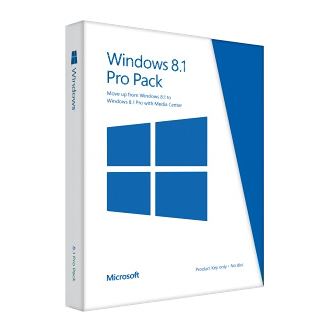
Well, at least that's the way that it should have worked, but I kept getting an error message when I tried to use the key. So after a few attempts I decided that it was time to contact Microsoft's Technical support to resolve the issue. I figured that it was probably some minor problem with the key, and it would be an easy issue to resolve. With that in mind, I browsed to http://support.microsoft.com and started a support chat session, which I have included in its entirety below:
| Answer Desk online chat | ||
|---|---|---|
| Vince P: | 5:12:37 PM | Hi, thanks for visiting Answer Desk. I'm Vince P. Welcome to Answer Desk, how may I help you? |
| You: | 5:13:09 PM | I just purchased a Windows 8.1 Pro Pack Product key from Microsoft for my Dell 8700 computer, but I get an error message that the key does not work. Here is the key: nnnnn-nnnnn-nnnnn-nnnnn-nnnn |
| Vince P: | 5:13:43 PM | I'll be happy to sort this out for you. For documentation purposes, may I please have your phone number? |
| You: | 5:14:02 PM | nnn-nnn-nnnn |
| Vince P: | 5:14:38 PM | Thank you, give me a moment please. As I understand, you cannot install Windows Media Center using the key that you have, is that correct? |
| You: | 5:17:53 PM | Yes, I am trying to upgrade from Windows 8.1 to Windows 8.1 Pro with Media Center |
| Vince P: | 5:18:12 PM | First, allow me to set expectations that Answer Desk is a paid support service. We have a couple of paid premium support options should your issue prove complex and require advanced resources. Before we discuss those further, I need to ask some questions to determine if your problem can be handled by our paid support or if it's something really easy that we can fix at no charge today. I will remotely access your computer to check the root cause of this issue. [Note: Vince sends me a URL and code to initialize a remote session to my computer using a 3rd-party application.] |
| You: | 5:19:40 PM | Why is a remote session necessary? |
| Vince P: | 5:21:19 PM | Yes, I need to check the root cause of this issue. Or I can send you some helpful links if you want. |
| You: | 5:21:52 PM | Or you can ask me to check anything for you What do you need to check? |
| Vince P: | 5:22:38 PM | http://windows.microsoft.com/en-US/windows-8/feature-packs If this link doesn't work, there might be some third party application that are blocking the upgrade. It is much faster if I remotely access your computer, if it's okay with you. |
| You: | 5:24:34 PM | I have gone through the steps in that article, they did not work, which is why I contacted support |
| Vince P: | 5:25:06 PM | I need to remotely access your computer. |
| You: | 5:25:11 PM | The exact error message is "This key won't work. Check it and try again, or try a different key." |
| Vince P: | 5:25:16 PM | Please click on the link and enter the code. |
| You: | 5:25:46 PM | Or - you can tell me what I need to check for you and I will give you the answers you need. |
| Vince P: | 5:26:51 PM | http://answers.microsoft.com/en-us/windows/forum/windows_8-pictures/upgrade-to-windows-8-media-center/6060f338-900f-437f-a981-c2ae36ec0fd8?page=~pagenum~ I'm sorry, but I have not received a response from you in the last few minutes. If you're busy or pre-occupied, we can continue this chat session when you have more time. If I do not hear from you in the next minute, I will disconnect this session. It was a real pleasure working with you today. For now, thank you for contacting Microsoft Answer Desk. Again, my name is Vince and you do have a wonderful day. |
| Your Answer Tech has ended your chat session. Thanks for visiting Answer Desk. | ||
Unbeknownst to "Vince", I worked in Microsoft Technical Support for ten years, so I know the way that the system is supposed to work and how Microsoft's support engineers are supposed to behave. Vince was condescending and extremely uncooperative - he simply wanted to log into my machine, but no one gets to log into my computers except me. I know my way around my computer well enough to answer any questions that Vince might have had, but Vince didn't even try. What's more, when Vince sent me a long support thread to read, he took that as his opportunity to simply end the chat session a few moments later. Very bad behavior, dude.
Unfortunately, Microsoft's chat application crashed after the session had ended, so I wasn't able to provide negative feedback about my support experience, so this blog will have to suffice. If I had a way to contact Vince's boss, I would have no problem pointing out that Vince desperately needs remedial training in basic technical support behavior, and he shouldn't be allowed to work with customers until he's shown that he can talk a customer through a support scenario without a remote session. If he can't do that, then he shouldn't be in technical support.
By the way - just in case someone else runs into this issue - all that I had to do in order to resolve the issue was reboot my computer. Seriously. Despite the error message, apparently Windows had actually accepted the upgrade key, so when I rebooted the computer it upgraded my system to Windows 8.1 Professional. (Go figure.)
Proper Use of Acronyms In Business Communications
16 July 2014 • by Bob • Content, Random Thoughts
I caught some people at work overusing some obscure acronyms in business emails that have considerably more popular uses, so I had to tell them to get used to spelling out phrases at least the first time in order to provide context for everyone else in the conversation. This should be obvious to everyone, but too many people fail to realize that their recipients may have no idea what the sender is talking about based on their individual knowledge.
For example:
- HTML - This should always mean "HyperText Markup Language," and it should never mean "Happy To Make Lemonade" With that in mind, you should always write "Happy To Make Lemonade (HTML)" when you first use it, and you should probably use it throughout your email. But still, you should consider writing "HyperText Markup Language (HTML)" when you first use it, just to make everything perfectly clear to your readers, and then you can use just the acronym for subsequent references.
- VS - This could be short for "versus," or it could mean "Visual Studio." Many English-speaking readers will probably be able to determine the correct meaning based on the surrounding text, but in a diverse work environment there is no guarantee that the intended meaning will be perfectly clear to everyone. This means that some recipients will have to re-read what the sender has written in order to verify their understanding, which could have been alleviated by simply using "A versus B" or "Visual Studio (VS)."
- OMG - This is often used colloquially to mean "Oh My Gosh," but I've seen it used to mean "On Middle Ground." Needless to say, the sentence can have dramatically different meanings depending on how that acronym is understood by the reader. For example: "Right now both parties are having a difficult time finding issues OMG where everyone can agree."
Social media acronyms should not be used in a business context; this includes the following examples:
- BTW - "By The Way"
- FWIW - "For What It's Worth"
- PDQ - "Pretty Darn Quick"
- SOL - "Sh** Outta Luck"
- etc.
There are a few possible exceptions which may be commonly-understood business acronyms, but you should still consider your recipients when deciding which of these acronyms you should use and which you should spell out. Here are a few examples:
- ASAP - "As Soon As Possible"
- FYI - "For Your Information"
- FAQ - "Frequently-Asked Questions"
- Q&A - "Questions and Answers"
- PS - "Postscript"
There is one simple rule that you should always remember when writing for others:
In business communications, brevity is not always better, and ambiguity will be the death of us all. 
FTP Clients - Part 14: CuteFTP
16 July 2014 • by Bob • FTP, SSL
For this next installment in my series about FTP clients, I want to take a look at Globalscape's CuteFTP, which is available from the following URL:
CuteFTP is a for-retail product that used to be available in several editions - Lite, Home, and Pro - but at the time of this blog CuteFTP was only available in a single edition which combined all of the features. With that in mind, for this blog post I used CuteFTP 9.0.5.
CuteFTP 9.0 Overview
I should start off with a quick side note: it's kind of embarrassing that it has taken me so long to review CuteFTP, because CuteFTP has been my primary FTP client at one time or other over the past 15 years or so. That being said, it has been a few years since I had last used CuteFTP, so I was curious to see what had changed.
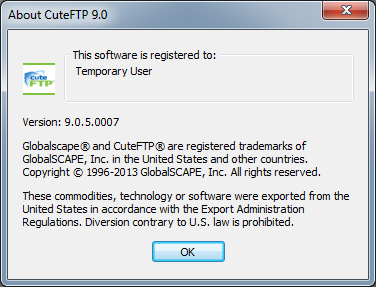 |
| Fig. 1 - The Help/About dialog in CuteFTP 9.0. |
To start things off, when you first install CuteFTP 9.0, it opens a traditional explorer-style view with the Site Manager displayed.
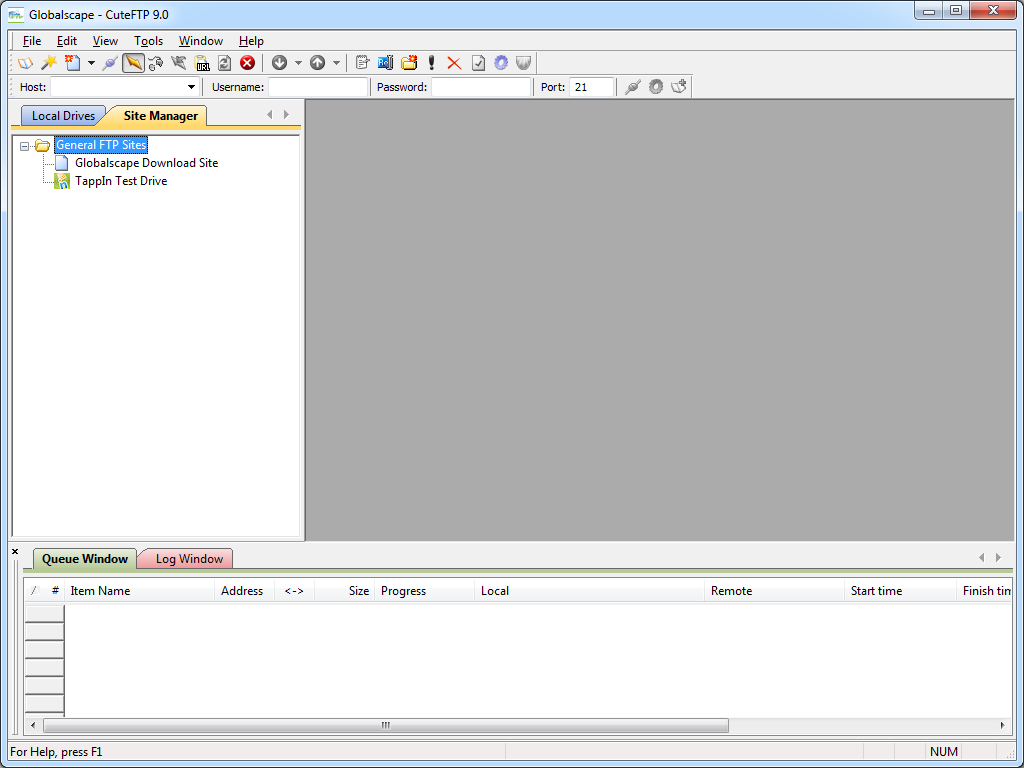 |
| Fig. 2 - CuteFTP 9.0's Site Manager. |
When you click File -> New, you are presented with a variety of connection options: FTP, FTPS, SFTP, HTTP, etc.
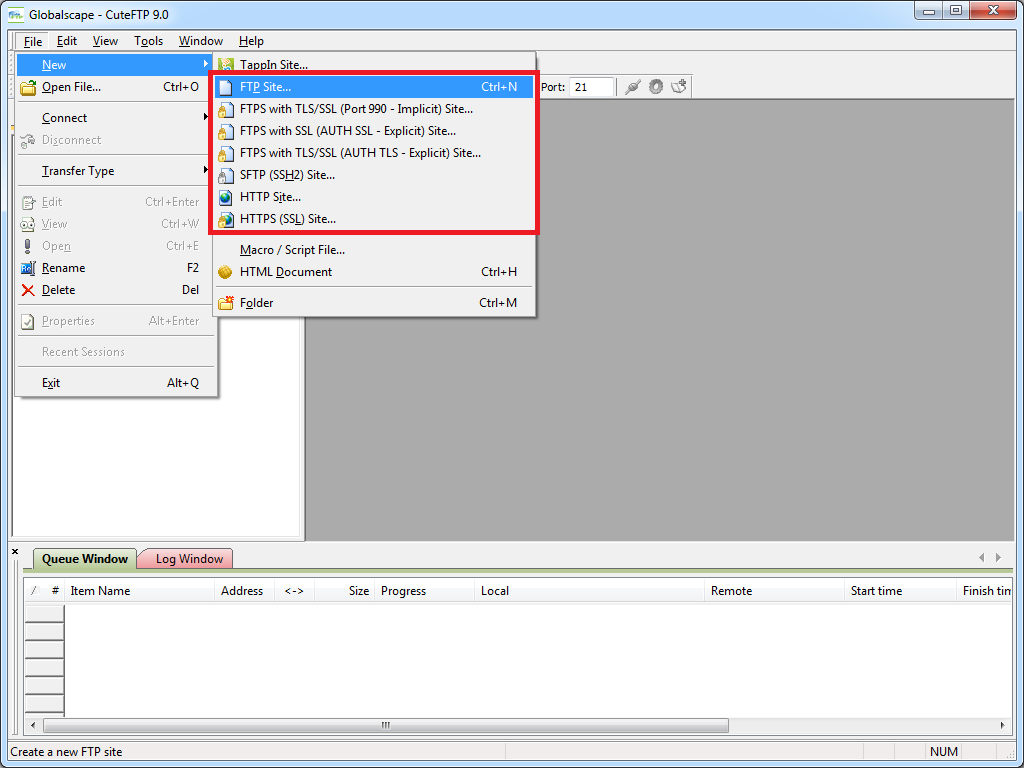 |
| Fig. 3 - Creating a new connection. |
When the Site Properties dialog is displayed during the creation of a new site connection, you have many of the options that you would expect, including the ability to change the FTP connection type after-the-fact; e.g. FTP, FTPS, SFTP, etc.
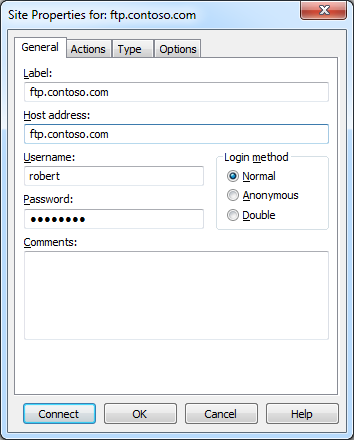 |
| Fig. 4 - Site connection properties. |
Once an FTP connection has been established, the CuteFTP connection display is pretty much what you would expect in any graphical FTP client.
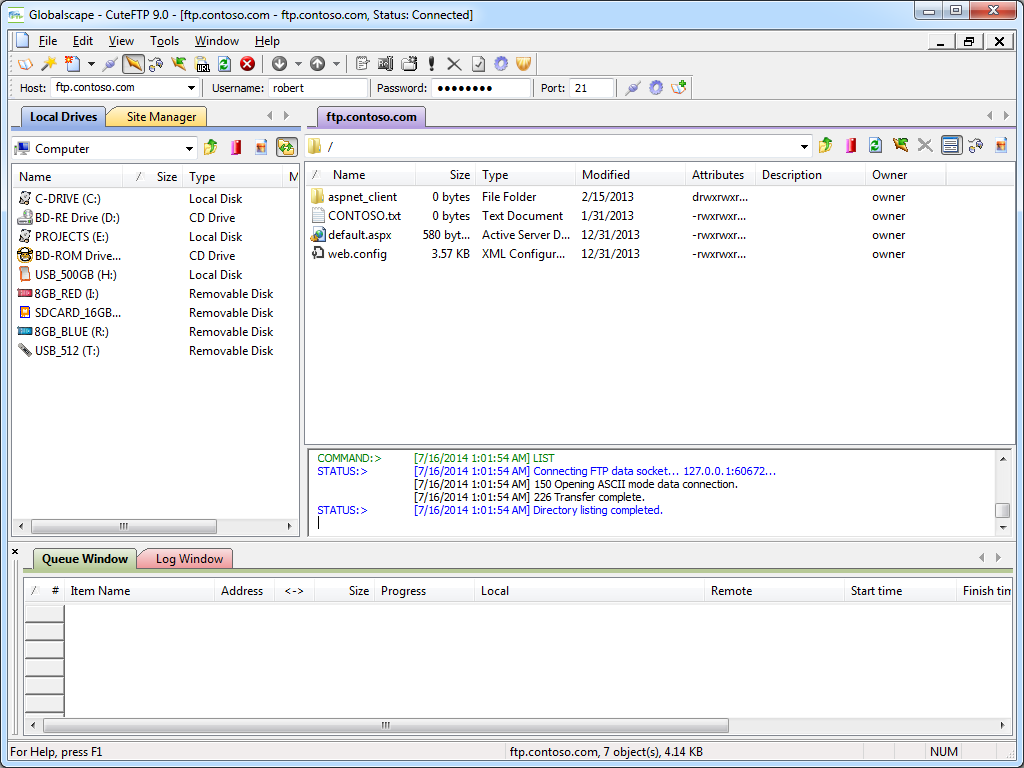 |
| Fig. 5 - FTP connection established. |
A cool feature for me is that CuteFTP 9.0 supports a COM interface, (which is called the Transfer Engine), so you can automate CuteFTP commands through .NET or a scripting language. What was specifically cool about CuteFTP's scripting interface was the inclusion of several practical samples in the help file that is installed with the application.
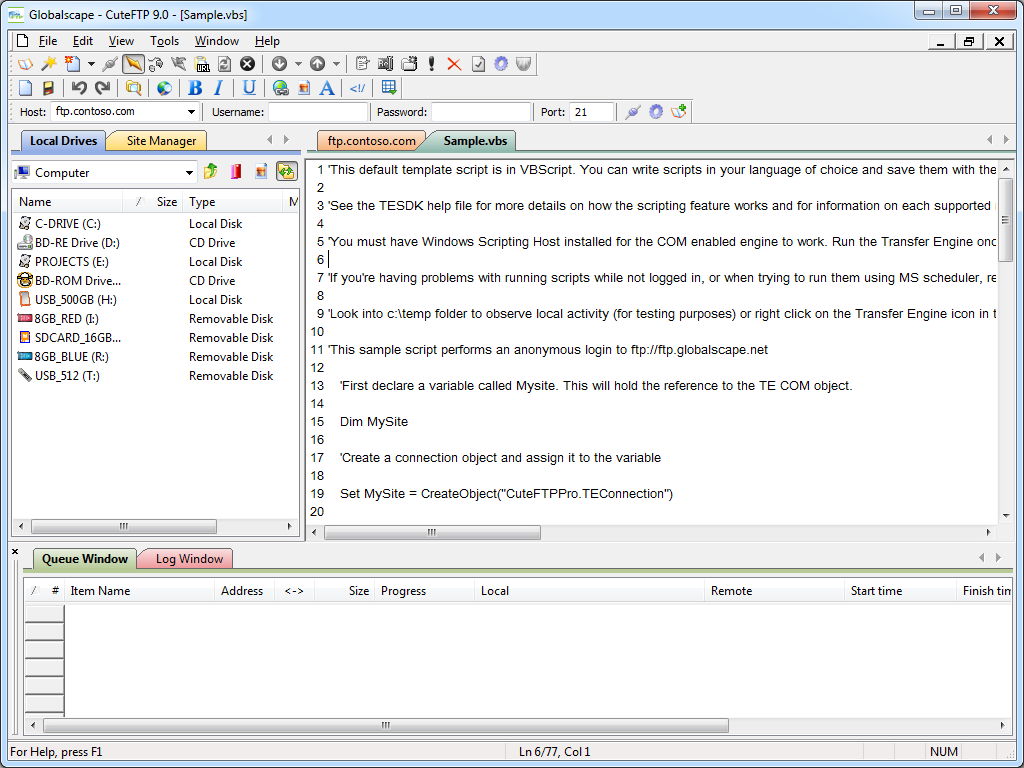 |
| Fig. 6 - Scripting CuteFTP. |
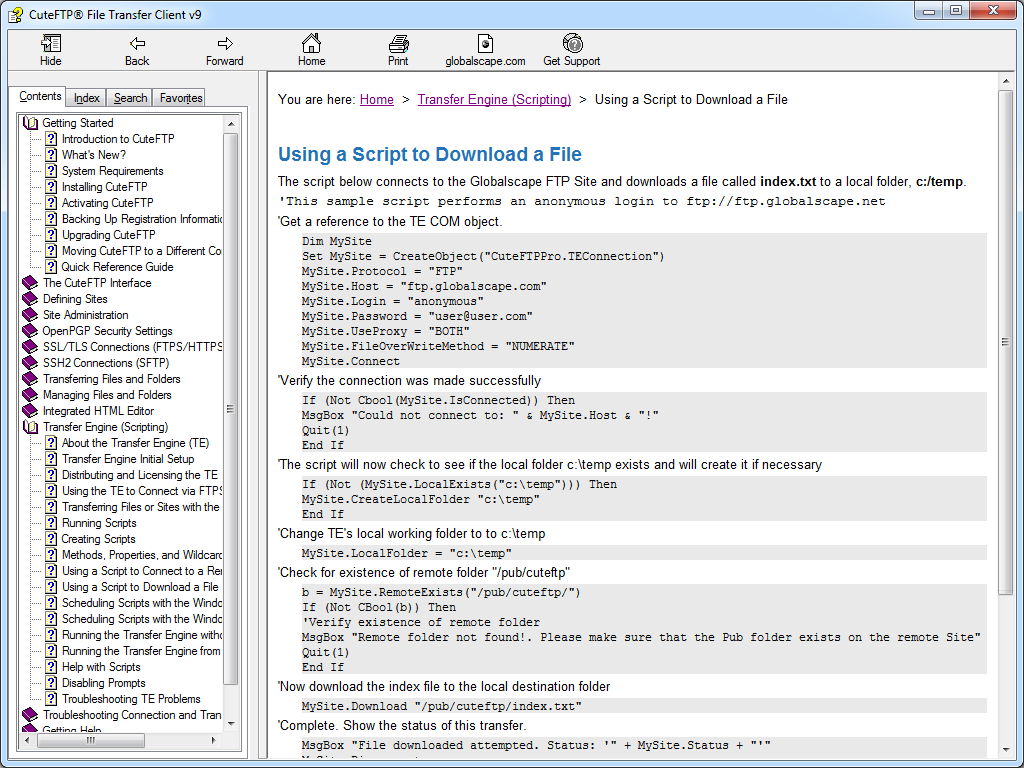 |
| Fig. 7 - Scripting samples in the CuteFTP help file. |
Anyone who has read my blogs in the past knows that I am also a big fan of WebDAV, and an interesting feature of CuteFTP is built-in WebDAV integration. Of course, this functionality is a little redundant if you are using any version of Windows starting from Windows XP and later since WebDAV integration is built-in to the operating system via the WebDAV redirector, (which lets you map drive letters to WebDAV-enabled websites). But still - it's cool that CuteFTP is trying to be an all-encompassing transfer client.
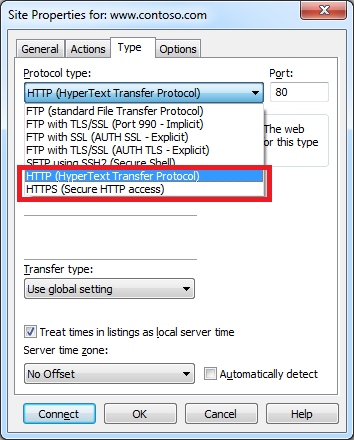 |
| Fig. 8 - Creating a WebDAV connection. |
One last cool feature that I should call out in the overview is the integrated HTML editor, which is pretty handy. I could see where this might be useful on a system where you use FTP and you don't want to bother installing a separate editor.
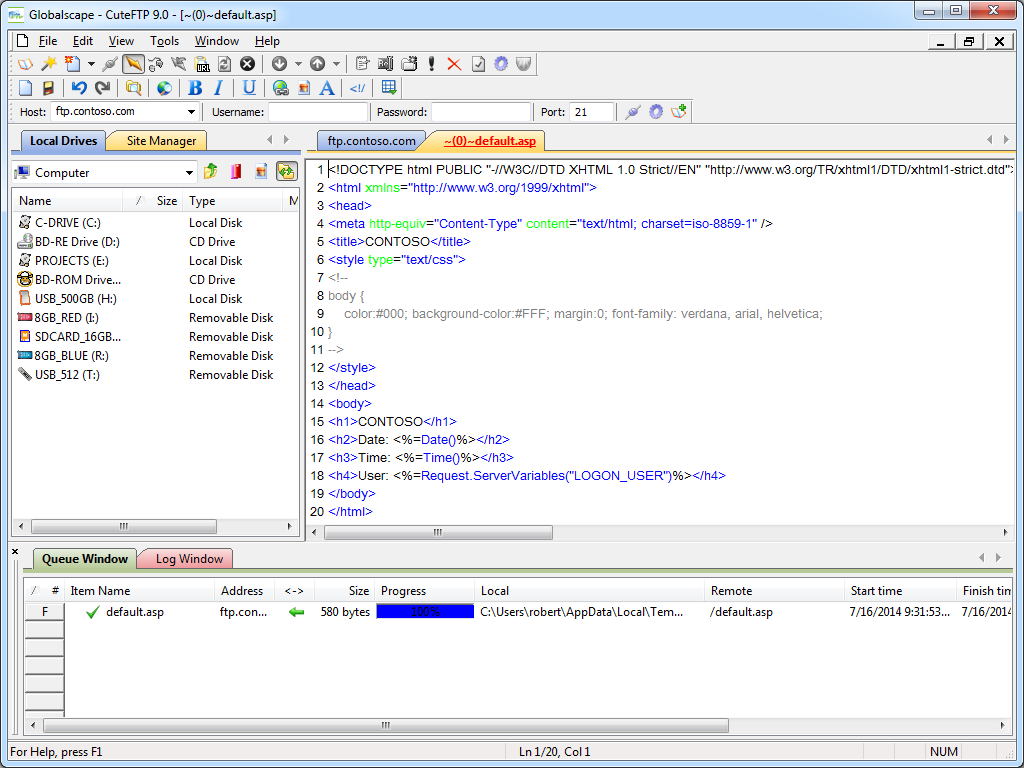 |
| Fig. 9 - CuteFTP's Integrated HTML editor. |
Using CuteFTP 9.0 with FTP over SSL (FTPS)
CuteFTP 9.0 has built-in support for FTP over SSL (FTPS), and it supports both Explicit and Implicit FTPS. To specify which type of encryption to use for FTPS, you need to choose the appropriate option from the Protocol type drop-down menu in the Site Properties dialog box for an FTP site.
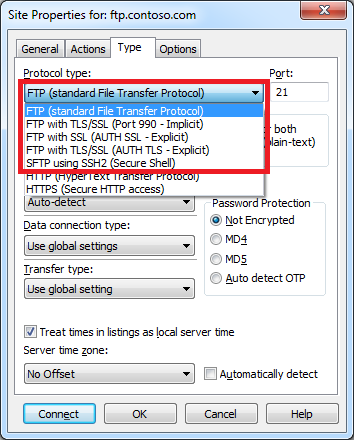 |
| Fig. 10 - Specifying the FTPS encryption. |
I was really happy to discover that I could use CuteFTP 9.0 to configure an FTP connection to drop out of FTPS on either the data channel or command channel once a connection is established. This is a very flexible design, because it allows you to configure FTPS for just your user credentials with no data and no post-login commands, or all commands and no data, or all data and all commands, etc.
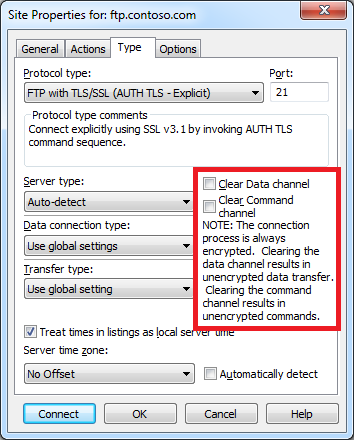 |
| Fig. 11 - Specifying additional FTPS options. |
Using Using CuteFTP 9.0 with True FTP Hosts
CuteFTP 9.0 does not have built-in support for the HOST command that is specified in RFC 7151, nor does CuteFTP have a first-class way to specify pre-login commands for a connection.
But that being said, I was able find a way to configure CuteFTP 9.0 to send a HOST command for a connection by specifying custom advanced proxy commands. Here are the steps to pull this off:
- Bring up the properties dialog for an FTP site in the CuteFTP Site Manager
- Click the Options
- Choose Use site specific option in the drop-down
- Enter your FTP domain name in the Host name field
- Click the Advanced button
- Specify Custom for the Authentication Type
- Enter the following information:
HOST ftp.example.com
USER %user%
PASS %pass%
Where ftp.example.com is your FTP domain name - Click OK for all of the open dialog boxes
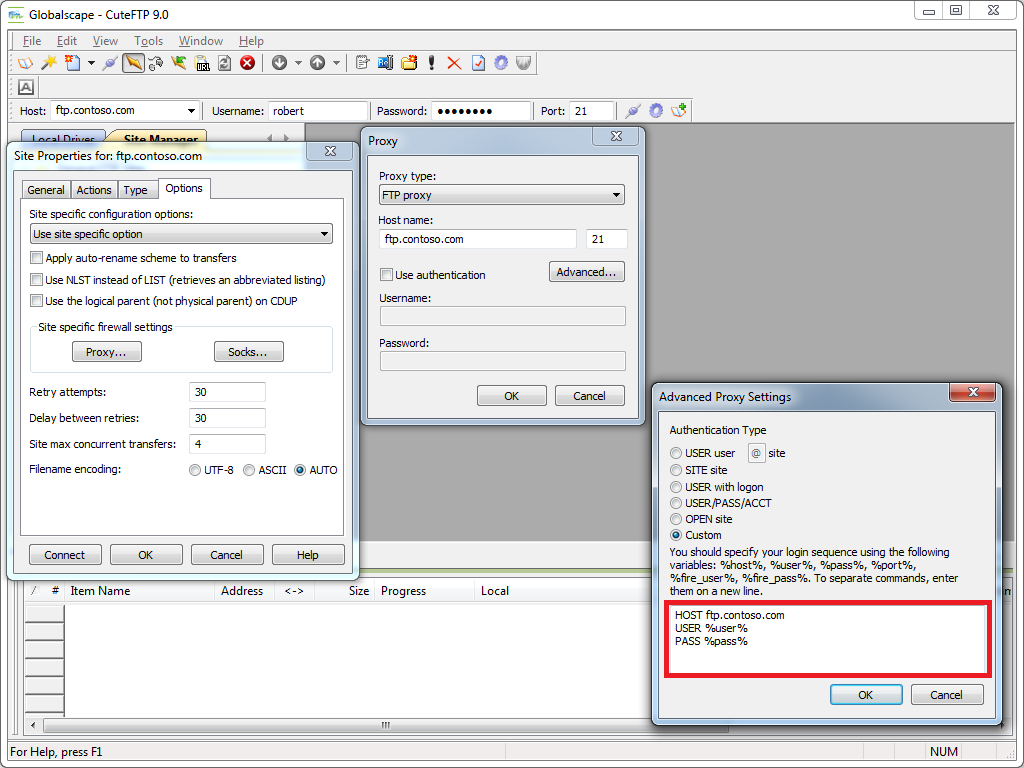 |
| Fig. 12 - Specifying a true FTP hostname via custom proxy settings. |
Note: I could not get this workaround to successfully connect with FTPS sessions; I could only get it to work with regular (non-encrypted) FTP sessions.
Using Using CuteFTP 9.0 with Virtual FTP Hosts
CuteFTP 9.0's login settings allow you to specify the virtual host name as part of the user credentials by using syntax like "ftp.example.com|username" or "ftp.example.com\username". So if you don't want to use the workaround that I listed earlier, or you need to use FTPS, you can use virtual FTP hosts with CuteFTP 9.0.
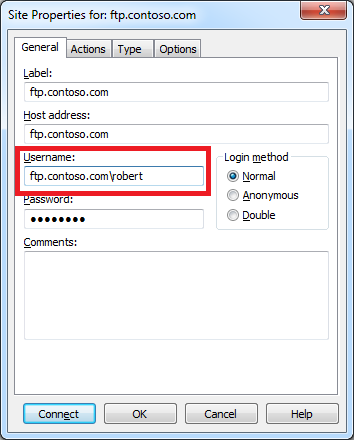 |
| Fig. 13 - Specifying an FTP virtual host. |
Scorecard for CuteFTP 9.0
This concludes my quick look at a few of the FTP features that are available with CuteFTP 9.0, and here are the scorecard results:
| Client Name | Directory Browsing | Explicit FTPS | Implicit FTPS | Virtual Hosts | True HOSTs | Site Manager | Extensibility |
|---|---|---|---|---|---|---|---|
| CuteFTP 9.0.5 | Rich | Y | Y | Y | Y/N1 | Y | N/A2 |
Notes:
|
|||||||
That wraps things up for today's review of CuteFTP 9.0. Your key take-aways should be: CuteFTP is good FTP client; it has added some great features over the years, and as with most of the FTP clients that I have reviewed, I am sure that I have barely scratched the surface of its potential.
Note: This blog was originally posted at http://blogs.msdn.com/robert_mcmurray/
Why I Will Buy Another Dell Computer
07 July 2014 • by bob • Hardware, Support, Windows
Several years ago I wrote a blog post that was titled Why I Won't Buy Another HP Computer, in which I described (in detail) a series of awful customer support experiences that I had with Hewlett-Packard (HP) when I purchased an HP desktop computer.
I would now like to offer the details of an entirely different customer support experience that I recently had with what is probably my favorite computer manufacturer: Dell.

Why I Like Dell
To start things off, I need to point out that I am a huge fan of Dell computers, and I have been for years. The reason for my admiration is simply this: Dell's computers have always worked for me. I have never had an experience where the hardware in a Dell computer has failed, even in extremely bad conditions. For example, I used to manage the network for a small church which had somewhere around 15 to 20 desktop computers and three Dell PowerEdge servers. During a particularly bad thunderstorm, a nearby lightning strike took out the hard drives on nearly all of the computers, including the servers. Fortunately everything on the network had multiple redundant backups, but as it turns out - I didn't need to use the backups. Only the hard drives were bad - all of the computers survived the damage, and I was able to use a combination of Symantec Ghost and Runtime Software's GetDataBack to restore all of the data on the failed drives to new drives. Despite the wide swath of destruction, all of the computers were up-and-running in less than a weekend.
In addition to having lived through that situation, I have been nothing but impressed with all of the Dell computers that I have owned both personally and professionally, and I have owned a lot. My currently laptop is from Dell, as is my wife's laptop, my son's laptop, my daughters' laptops, my Windows Media Center computer, my tablet PC, and several of my work-related computers. In fact, the only non-Dell computing devices in my house right now are my home-built rackmounted server, my wife's Microsoft Surface, and the HP computer from my earlier blog - which is what led me to my recent experience.
Shopping for a New PC
The single HP computer in my household is several years old, and it was time for me to start thinking about upgrading. I had been doing a little shopping, but nothing serious. Since I am taking some graduate courses at the University of Arizona, I have found myself on the receiving end of spam that various companies throw at college students. (Dear Spammers: if you are reading this, I do not need another credit card, or back-to-school attire, or a summer internship, or student housing, etc.) But one piece of spam caught my eye: Dell had sent me an email advertising a free tablet computer with the purchase of a new computer. Since I was already in the market for a new computer, I thought that I would check out their deals.
I followed the link from the email to Dell's website, where I quickly learned that Dell's offer was for an Android-based tablet. I could care less about an Android device, but I was curious if Dell had a deal for a Windows-based device. With that in mind, I clicked a link to start a chat session with a sales representative. I don't want to give out full names for privacy reasons, so I'll just say that I wound up with a guy whose initials are "N.A." He informed me that Dell did have a deal where I could get a Windows tablet instead of the Android tablet, although it would cost more. That was perfectly acceptable to me, so I said that I was interested, but I had more questions. Our chat session wound up lasting 45 minutes, all of which was entirely due to me because I spent much of the chat session looking at various products on Dell's website and asking N.A. lots of questions about this option or that.
Bad News and Good News
I eventually decided on a deal that I liked, and I gave all of my contact information to N.A. so he could call me to get my credit card information. N.A. sent me the full text of the chat session, and he promised to call me within five minutes. But he never called. I remembered from the chat session that I had mentioned that I might want to wait 24 hours since it was the day before payday, so after 20 minutes I decided that N.A. might have misunderstood what I had meant, and I decided to wait until the next day to see if Dell would call me back.
By the following afternoon I still hadn't heard anything, so I decided to call Dell's 1-800 number to see what the deal was. I was routed through to a sales representative with the initials W.P., and I explained the situation. He did a little checking, and he informed me of two interesting pieces of information: first of all, the Dell deal for a Windows-based tablet had ended the day before, and much worse - apparently N.A. had quoted me the wrong tablet PC anyway.
Giving credit where it was due, W.P. was great throughout the call - I was understandably disappointed at the situation, and I kind of felt like I was being forced into a "Bait-and-Switch" scenario based on mistakes over which I had no control. W.P. checked with his manager, J.H., who said that he would try to contact N.A.'s department to see if they would stand behind their misquoted pricing. With that, W.P. and I ended the call.
I hadn't heard anything by the following afternoon, so I sent an email to J.H. and W.P. to ask what the status was with my situation, and I forwarded N.A.'s email with the original chat session. I also mentioned that I am a big Dell fan, and this situation was not reflecting well on Dell's ability to make a sale. Shortly after I sent out my email, J.H. called me to say that he couldn't contact the right person in N.A.'s department, so he was taking responsibility for the situation on Dell's behalf and was going to honor the deal. Very cool.
Closing Remarks
This entire experience reinforced my appreciation for Dell - not because I wound up getting a good deal, but primarily because a series of people took responsibility for someone else's mistake and worked to make things right.
Ultimately these people's actions made their company look great, and that's why I will buy another Dell computer.
FYI - The computer and the tablet both arrived and they're great. ;-]
How to Merge a Folder of MP4 Files with FFmpeg (Revisted)
06 July 2014 • by Bob • FFMPEG, Video Editing, Scripting, Batch Files
I ran into an interesting situation the other day: I had a bunch of H.264 MP4 files which I had created with Handbrake that I needed to combine, and I didn't want to use my normal video editor (Sony Vegas) to perform the merge. I'm a big fan of FFmpeg, so I figured that there was some way to automate the merge without having to use an editor.
I did some searching around the Internet, and I couldn't find anyone who was doing exactly what I was doing, so I wrote my own batch file that combines some tricks that I have used to automate FFmpeg in the past with some ideas that I found through some video hacking forums. Here is the resulting batch file, which will combine all of the MP4 files in a directory into a single MP4 file named "ffmpeg_merge.mp4", which can be renamed to something else:
@echo off

if exist ffmpeg_merge.mp4 del ffmpeg_merge.mp4
if exist ffmpeg_merge.tmp del ffmpeg_merge.tmp
if exist *.ts del *.ts

for /f "usebackq delims=|" %%a in (`dir /on /b *.mp4`) do (
    ffmpeg.exe -i "%%a" -c copy -bsf h264_mp4toannexb -f mpegts "%%a.ts"
)

for /f "usebackq delims=|" %%a in (`dir /b *.ts`) do (
    echo file %%a>>ffmpeg_merge.tmp
)

ffmpeg.exe -f concat -i ffmpeg_merge.tmp -c copy -bsf aac_adtstoasc ffmpeg_merge.mp4

if exist ffmpeg_merge.tmp del ffmpeg_merge.tmp
if exist *.ts del *.ts
The merging process in this batch file is performed in two steps:
- First, all of the individual MP4 files are remuxed into individual transport streams
- Second, all of the individual transport streams are remuxed into a merged MP4 file
Here are the URLs for the official documentation on each of the FFmpeg switches and parameters that I used:
- Switches:
- Parameters:
By the way, I realize that there may be better ways to do this with FFmpeg, so I am open to suggestions. ;-]